
1. Things You Should Know Before You Start
Before you open an account, spend five minutes on the four points below. They decide who you’re legally dealing with, what protection you have, what you can trade, and what it costs — and they differ depending on where you live.
1.1 Capital.com Is Regulated by the FCA in the UK
If you’re a UK resident, your account is held with Capital Com (UK) Limited — registered in England and Wales under company number 10506220 and authorised and regulated by the Financial Conduct Authority under firm reference number 793714. This entity onboards UK clients only.
Don’t take that on trust — check it yourself. Search “793714” on the FCA’s Financial Services Register, confirm the firm name matches, and confirm the status reads “Authorised.” It takes thirty seconds and it’s a habit worth building with any broker.
FCA authorisation isn’t a badge; it’s a set of obligations the firm has to meet:
- Segregated client money. Your deposit is held in a client account separate from Capital.com’s own operating funds, so it can’t be used to run the business.
- Negative balance protection. As a retail client you can’t lose more than the money in your account, even if a market gaps violently against a leveraged position.
- Margin close-out rules. Positions are closed automatically once your margin level falls below the regulatory threshold, rather than being allowed to run indefinitely.
- Best execution. The firm must take reasonable steps to get you the best available result on price and execution.
Two protections are worth knowing by name. UK clients may be eligible for compensation of up to £85,000 under the Financial Services Compensation Scheme (FSCS) — this covers the firm failing, not your trades losing money. And FCA rules give you access to the Financial Ombudsman Service if a complaint isn’t resolved directly with the broker.
The FCA also caps how much leverage you can use as a retail client. The limits are 30:1 on major currency pairs, 20:1 on major indices, gold and non-major currency pairs, 10:1 on other commodities and minor indices, and 5:1 on individual shares. Those caps aren’t Capital.com being cautious — they’re regulation, and every FCA-regulated broker applies them.
On the security side, Capital.com holds ISO 27001 certification for information security management and is PCI DSS compliant for payment handling.
1.2 Outside the UK, You’re Signing Up with a Different Company
Capital.com operates through separate regional entities, and the one you’re onboarded to determines your leverage caps, your compensation cover and which products you can access:
| Region | Entity | Regulator | Licence | Compensation |
| UK | Capital Com (UK) Ltd | FCA | 793714 | Up to £85,000 (FSCS) |
| EU + Norway | Capital Com SV Investments Ltd | CySEC | 319/17 | Up to €20,000 (ICF) |
| Australia | Capital Com Australia Pty Ltd | ASIC | AFSL 513393 | None |
| UAE | Capital Com MENA Securities Trading LLC | SCA | — | None |
| Rest of world | Capital Com Online Investments Ltd | SCB (Bahamas) | SIA-F245 | None |
The Bahamas entity is the global offshore arm and allows leverage of up to 200:1 — far more than the UK cap, with no compensation scheme behind it. Whichever country you’re in, scroll to the footer of the site you’re registering on and check which entity and regulator is named there before you deposit.
1.3 You’re Trading CFDs and Spread Bets — You Don’t Own Anything
Everything on Capital.com is a derivative. When you “buy Tesla” here, you’re opening a contract for difference on Tesla’s price. You have no shareholding, no voting rights and no dividend entitlement — you’re settling the difference between your entry and exit price.
Spread betting is offered to UK and Ireland residents only, and profits are generally free of capital gains tax, though tax treatment depends on your individual circumstances and can change.
One thing to know now rather than at Section 7: crypto derivatives are not available to retail clients registered with Capital Com (UK) Ltd. If Bitcoin is why you’re here, this isn’t the right entity for you.
1.4 What You Can Actually Trade
The UK platform gives access to more than 5,500 instruments: over 4,500 shares, 120+ forex pairs, 650+ ETFs, 65+ commodities, 35+ indices, 20+ bonds and a selection of interest rate markets. That’s broad enough that most beginners are better off picking two or three markets and learning them properly than sampling everything.
1.5 What It Costs Before You Deposit Anything
Capital.com doesn’t charge commission on trades, and covers deposit and withdrawal costs itself. Your real costs are the spread — half paid when you open and half when you close — and an overnight funding adjustment if you hold a position past the daily cut-off. There’s also a currency conversion cost if you trade markets denominated in something other than your account currency. Section 11 breaks all three down with worked numbers.
1.6 Is It a Sensible Starting Point for a Beginner?
The case for: a £20 minimum deposit, an unlimited free demo account, a genuinely clean platform, and a substantial education library through the Learn Hub and Investmate app.
The case against: verification is thorough and can be slow, there’s no copy trading or social.
And the number that matters most: 61% of retail investor accounts lose money trading spread bets and CFDs with this provider. A good platform doesn’t change that. What follows in this guide is the mechanical process — but the mechanics are the easy part.
2. How to Open a Capital.com Account
Opening a Capital.com account takes around five minutes and runs across roughly a dozen short screens. That’s longer than signing up for most apps, and it’s worth knowing why up front: as an FCA-regulated firm, Capital.com has to run basic compliance checks on every new client to confirm they understand the risks of trading before admitting them to it. The questions about your income, your experience and your identity aren’t marketing — they’re the same rules that give you segregated client money, negative balance protection and FSCS cover.
The good news is that each screen asks for one thing only, so it moves quickly if you have your details to hand.
2.1 What to Have Ready
- A valid email address and mobile number
- Your National Insurance number
- A colour scan or photo of your passport or national ID
- A utility bill or bank statement from the last six months showing your address
- Rough figures for your income and savings, and an honest sense of your trading experience
2.2 Step 1 — Create Your Login
Go to capital.com and click Open account. Enter your email address, choose a password, and click Continue.
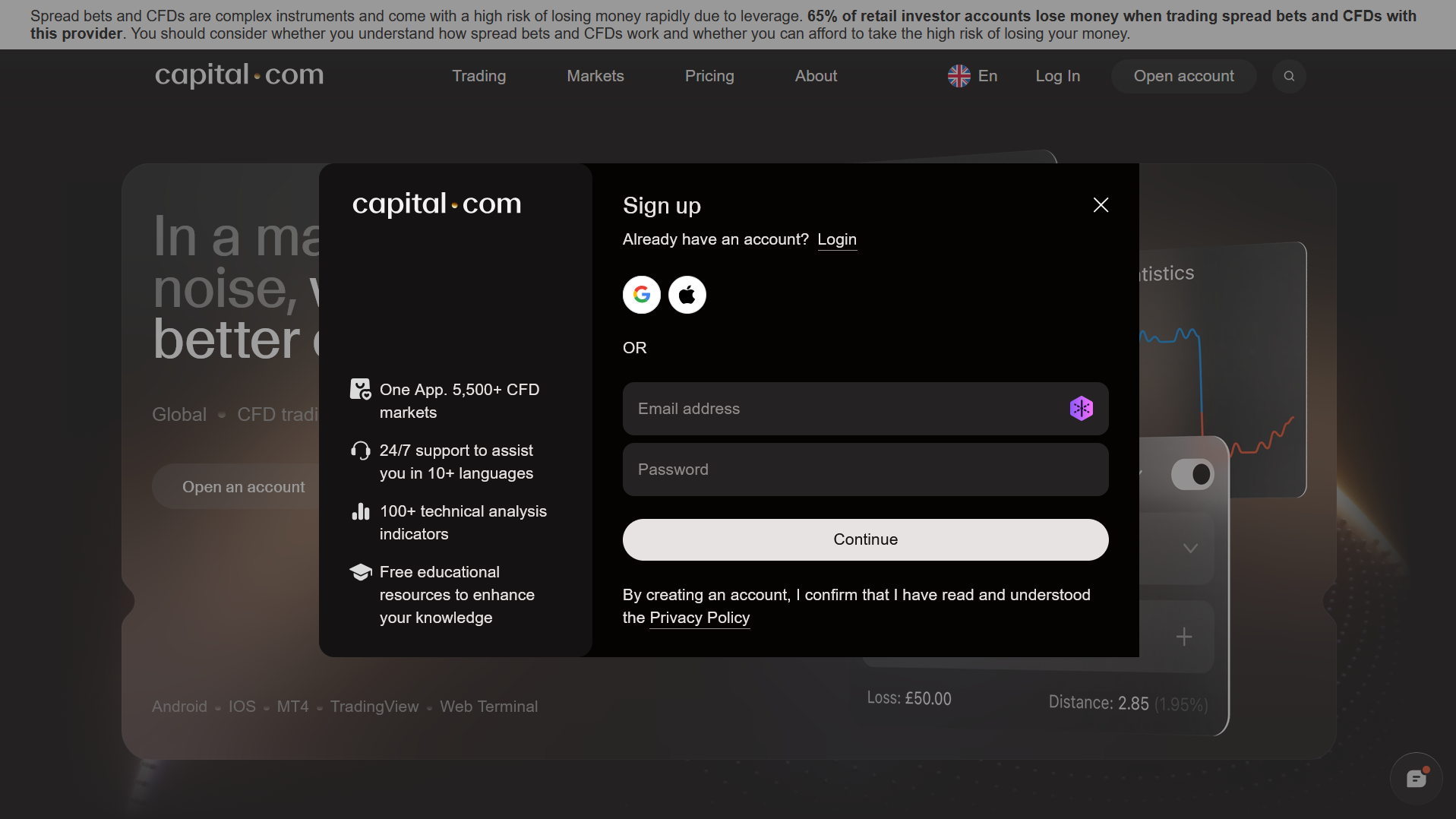
Want to look around first? At this point you can click the cross in the top-right corner to skip straight into the platform and explore it before completing your profile. You won’t be able to trade — but you can browse markets, open charts and get a feel for the layout, then come back and finish registration when you’re ready.
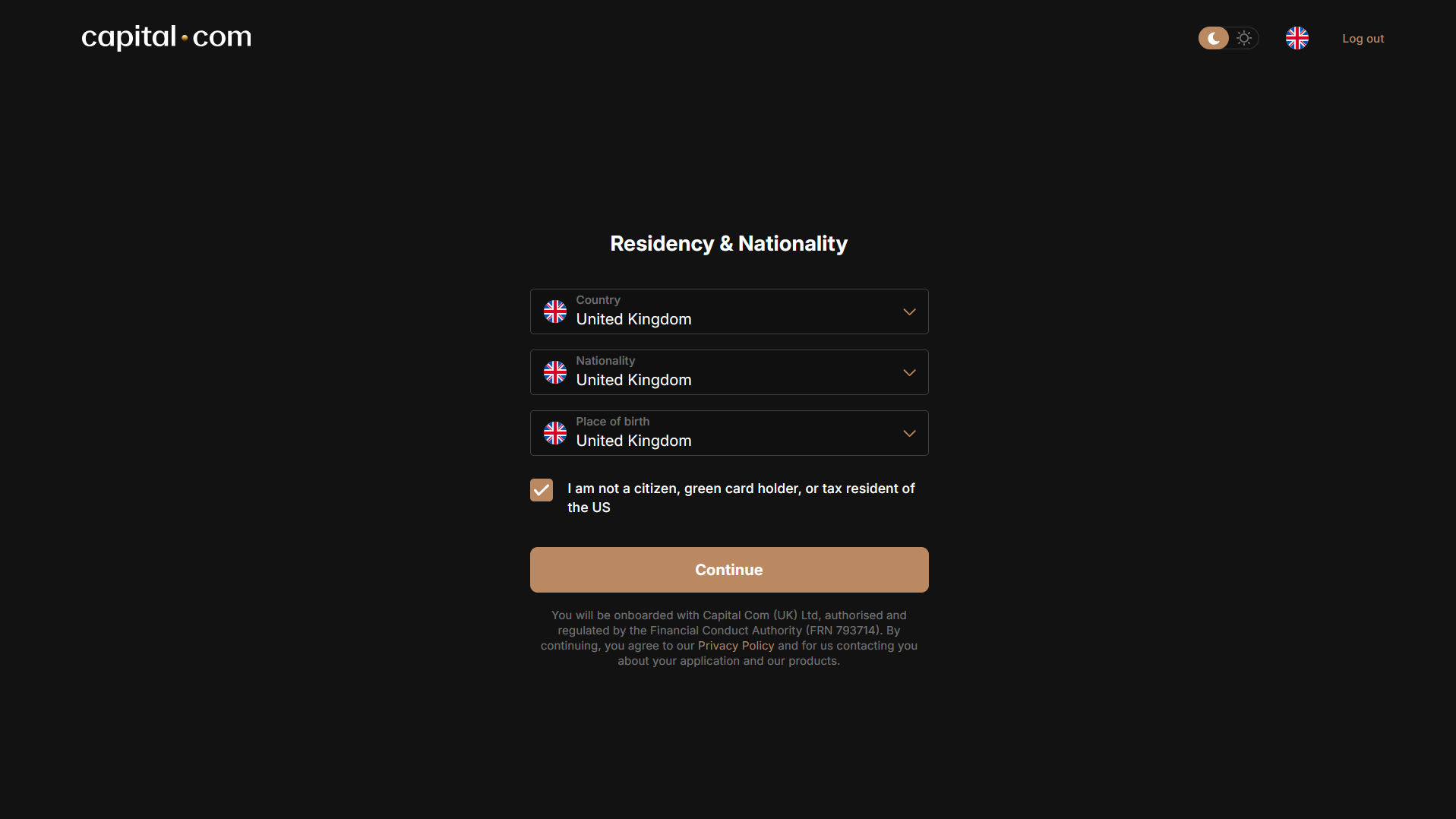
2.3 Step 2 — Select Your Nationality and Country of Residence
Choose your nationality and the country you live in, then click Continue. This determines which Capital.com entity you’re onboarded to and which regulator covers you — a UK address places you with the FCA-regulated entity described in Section 2.1. Get this right, because changing it later means opening a new account.
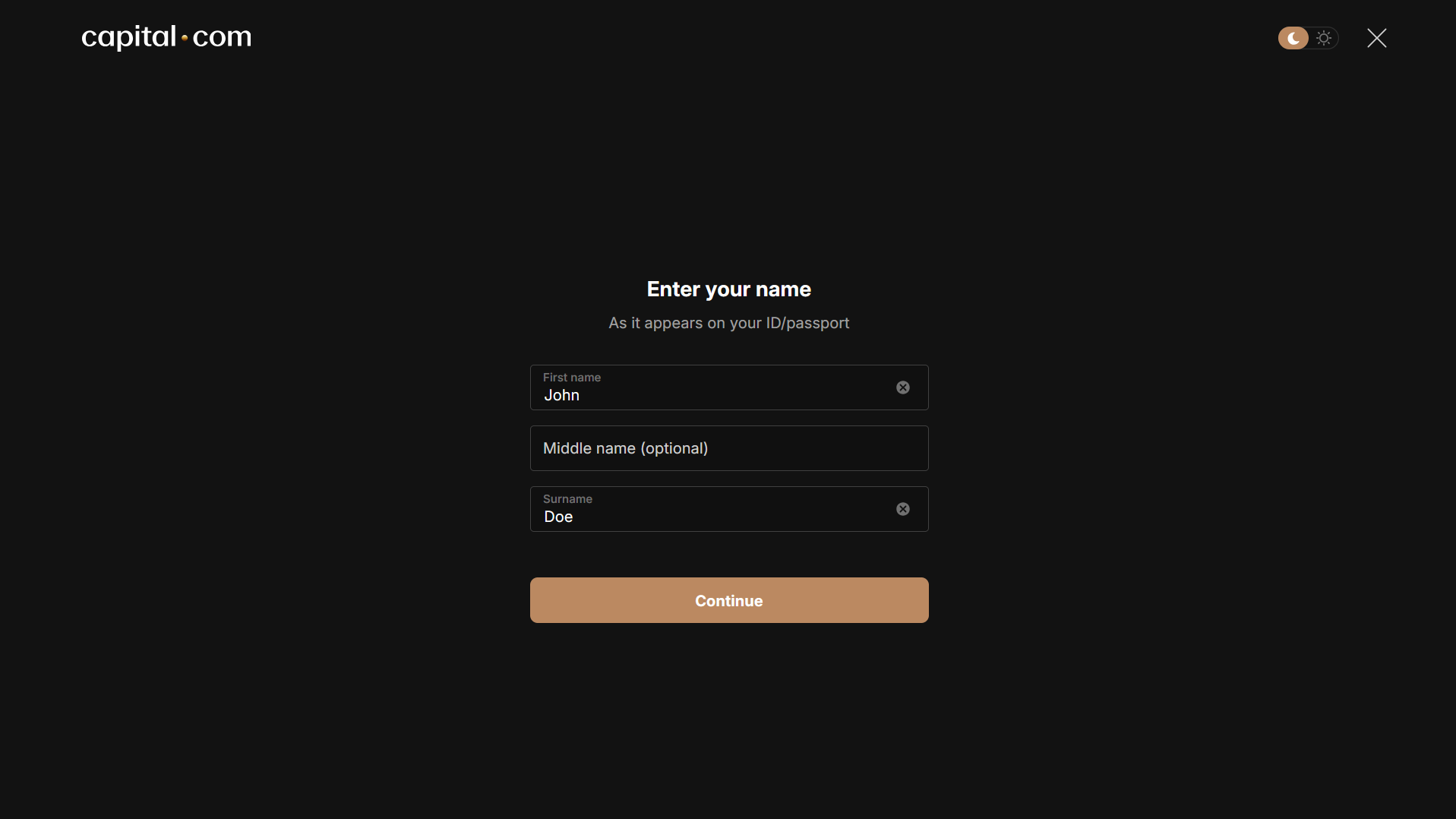
2.4 Step 3 — Enter Your Name
Enter your first and last name exactly as they appear on the ID document you’ll be uploading later. A mismatch here is the single most common cause of a rejected verification.
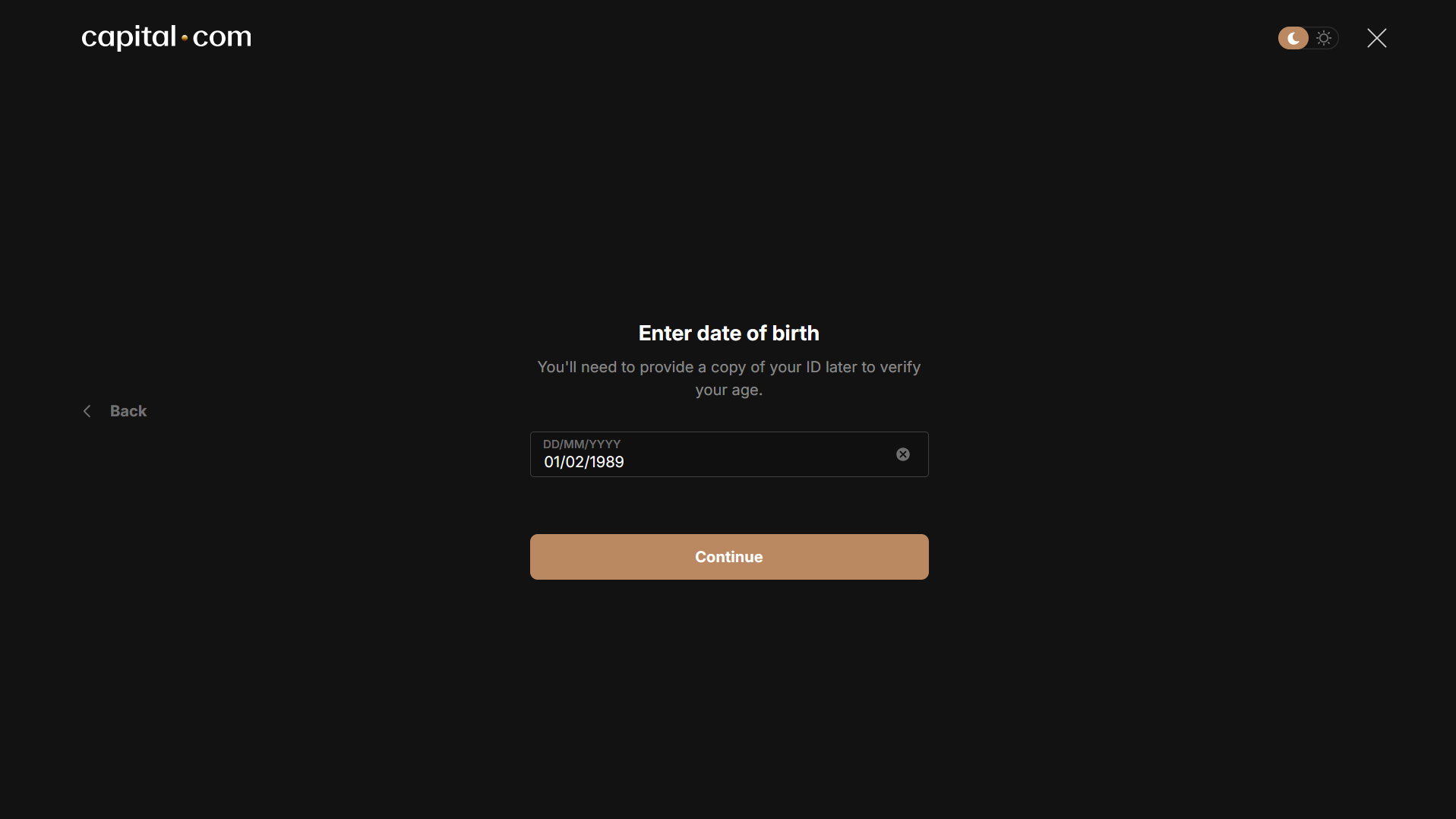
2.5 Step 4 — Enter Your Date of Birth
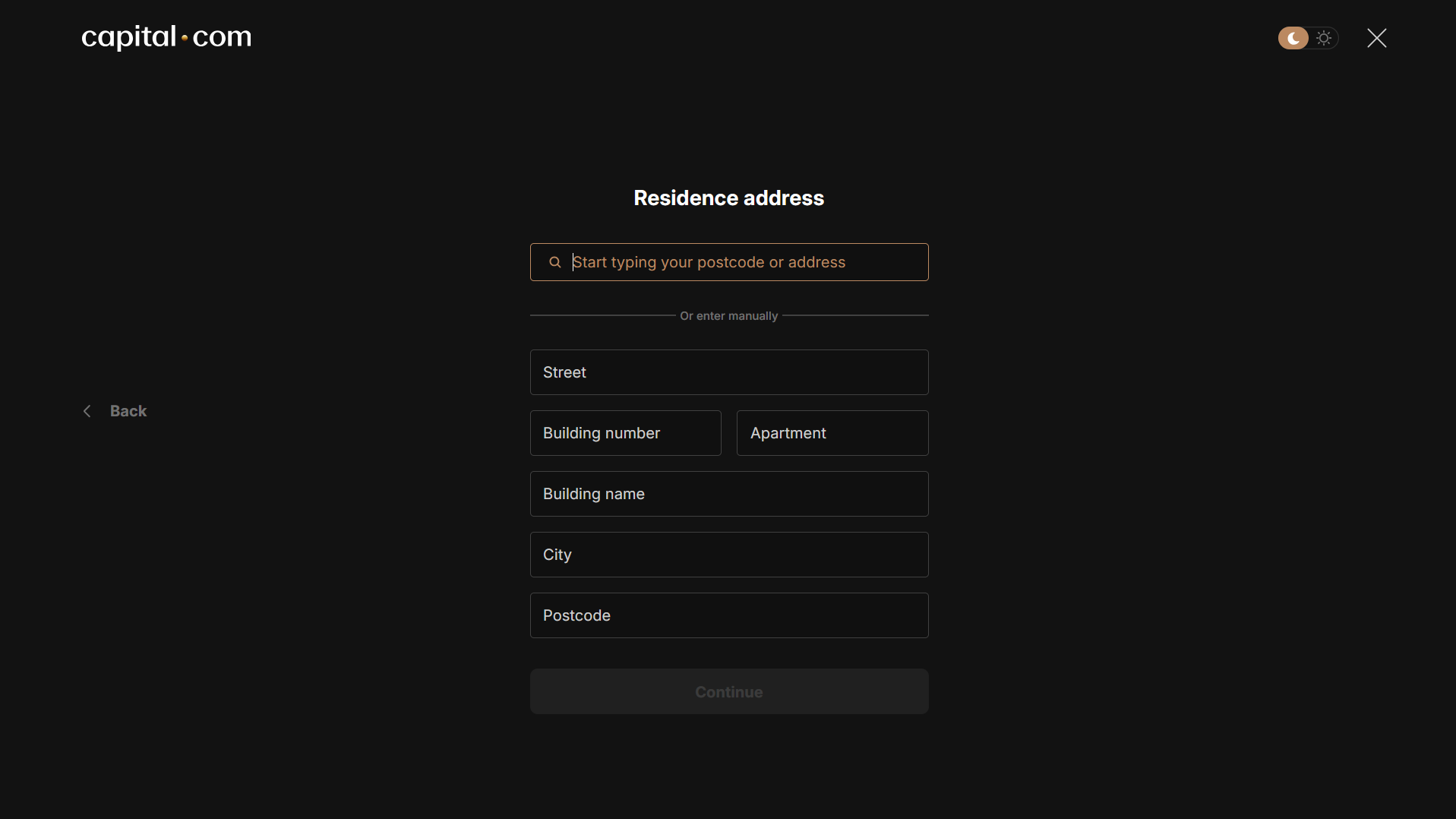
2.6 Step 5 — Enter Your Address
Provide your residential address. This needs to match the address on the proof-of-address document you’ll submit during KYC.
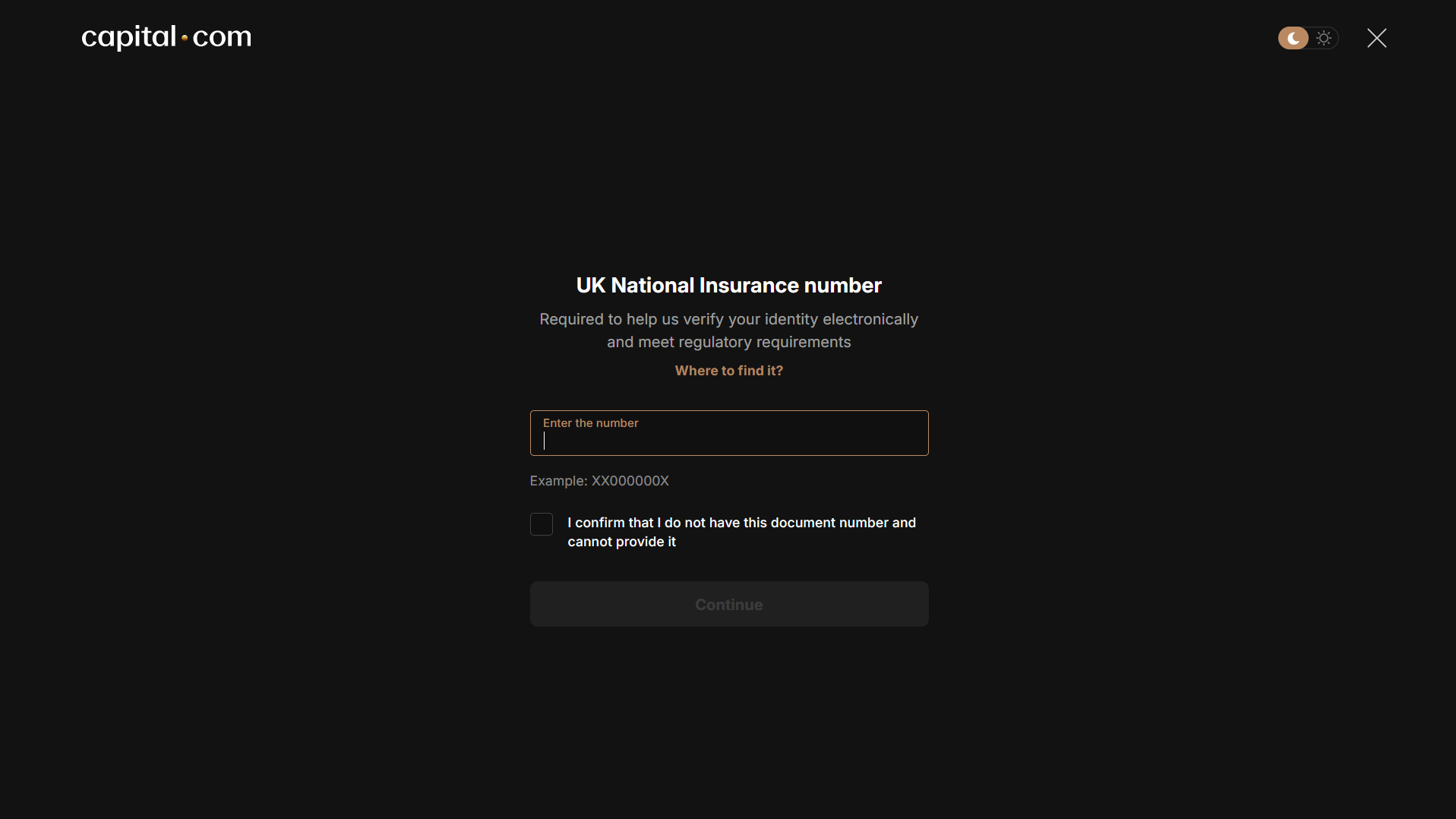
2.7 Step 6 — Provide Your National Insurance Number
UK applicants are asked for their National Insurance number. This is a standard tax-reporting requirement for regulated financial firms, not an unusual request.
2.8 Step 7 — Verify Your Email
Open your inbox, find the message from Capital.com and click Verify now. If it isn’t there within a minute or two, check your spam folder before requesting a resend.
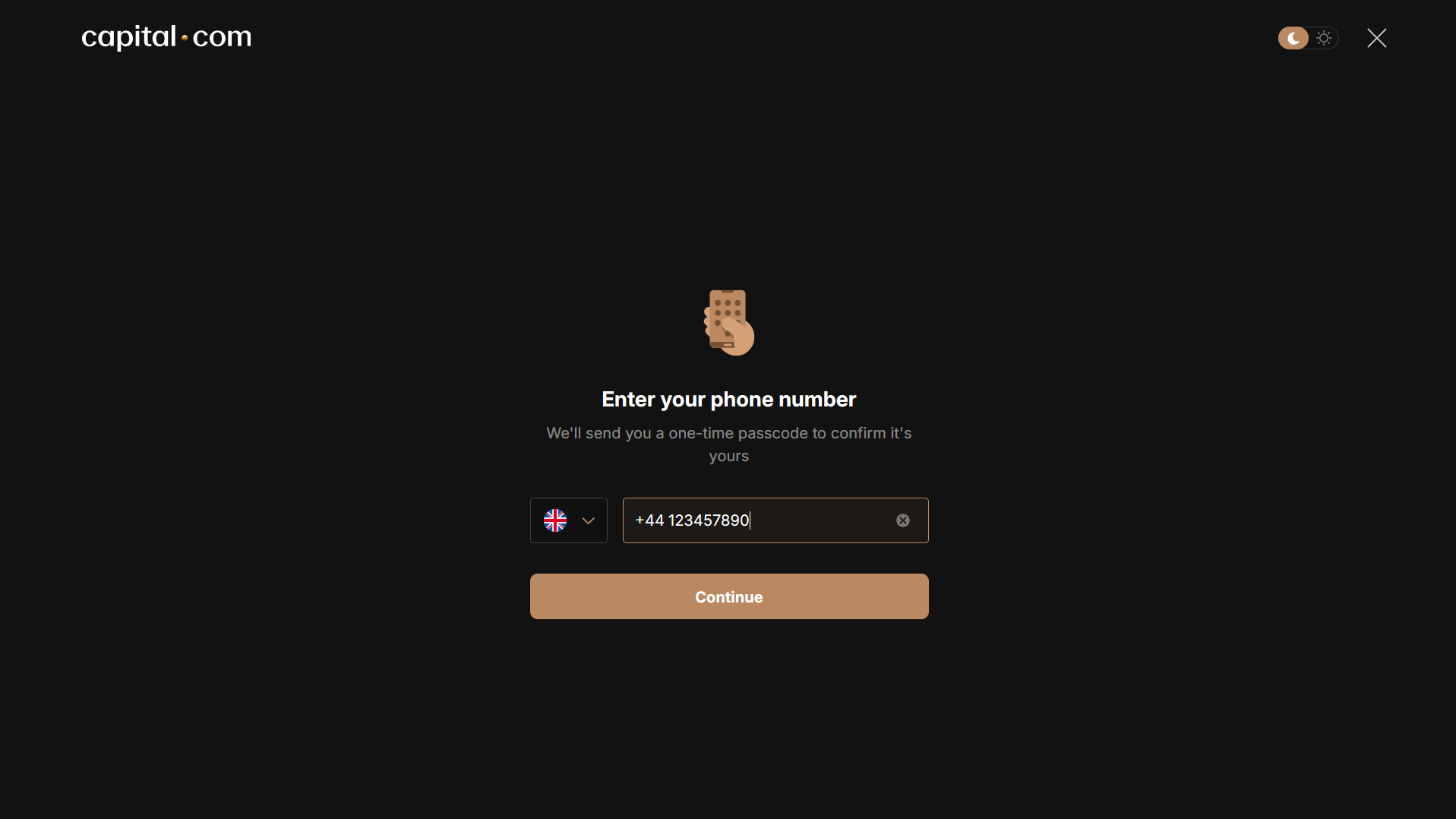
2.9 Step 8 — Add Your Phone Number
Enter your mobile number and confirm it with the code you receive. This is also used for account security later.
2.10 Step 9 — Answer the Questions About Your Finances
You’ll be asked about your income, savings and source of funds. This is an FCA requirement — the regulator expects firms to check that clients can afford to take on the risk of leveraged products. Answer accurately rather than optimistically; nobody benefits from you being assessed as able to absorb losses you can’t.
2.11 Step 10 — Complete the Trading Knowledge Assessment
A short set of questions on leverage, margin and how CFDs work. This is the appropriateness test. It’s not a pass-or-fail exam in the usual sense, but if your answers indicate limited experience you may be shown additional risk warnings before you can proceed.
2.12 Step 11 — Read and Accept the Terms
Review the client agreement, risk disclosure and associated documents, and accept them if you agree. Worth actually skimming the risk disclosure — it’s where the leverage and margin close-out rules are spelled out.
2.13 Step 12 — Choose Your Account Type
UK residents are offered a choice between two account types:
- CFD account — available to clients everywhere Capital.com operates. Profits are subject to capital gains tax, but losses can generally be offset against gains.
- Spread betting account — offered to residents of the UK and Ireland only. Profits are usually free of capital gains tax and stamp duty, but losses can’t be offset. Positions are sized in pounds per point of market movement rather than in units of the asset.
Both use the same platform and the same markets. Spread betting is the more common choice for UK residents purely on tax grounds — though tax treatment depends on your individual circumstances and can change.
2.14 Step 13 — Complete Your KYC Verification
The final stage is identity verification. You’ll need to:
- Upload a photo of your passport or national ID
- Complete a selfie liveness check — a short camera capture confirming you’re a real person matching the document
- Confirm or upload proof of your address
Make sure all four corners of each document are visible, the image is in colour, and nothing is cropped or obscured by glare.
2.15 Step 14 — Explore the Platform While Verification Runs
Once your KYC is submitted, you can go straight into the platform. You can explore and use the demo account immediately, but you can’t place real trades until compliance is complete — which can take up to a couple of days depending on your circumstances.
Use that window rather than waiting on it. Section 6 covers what to actually practise on the demo account so that when your live account is approved, you’re learning the market rather than the buttons.
3. How to Deposit Funds into Your Capital.com Account
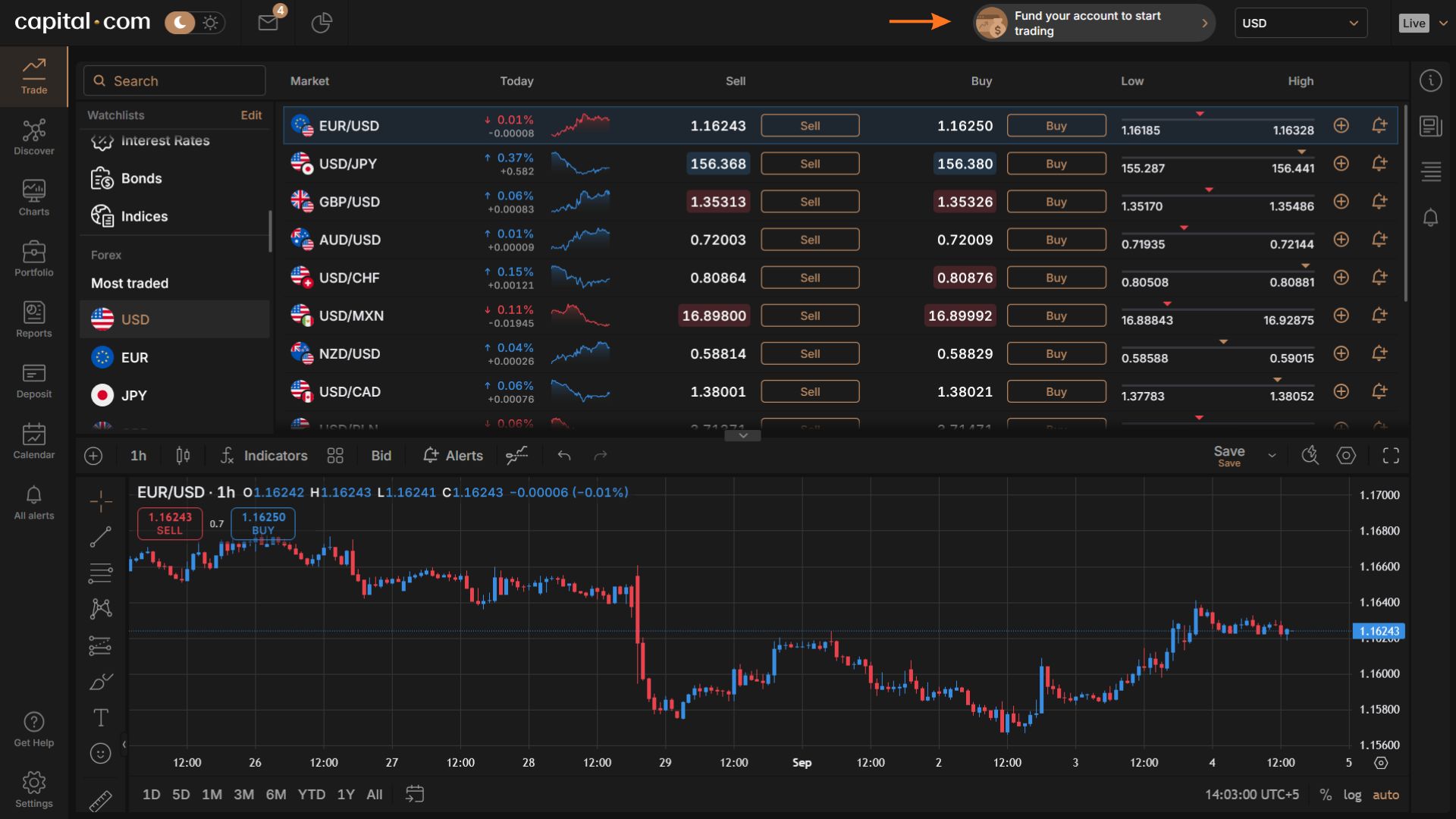
Once your identity documents are approved, two things change. Your account is automatically switched from demo to live — you don’t need to request an upgrade or open anything new. And Capital.com adds a “Fund your account to start trading” button to the top header of the platform, which stays there until you make your first deposit. That button is your shortcut to the deposit screen from anywhere in the platform.
3.1 Capital.com Minimum Deposit
The minimum depends on how you pay:
| Method | Minimum |
| Debit/credit card | £20 |
| E-wallets (PayPal, Apple Pay, Google Pay, etc.) | £20 |
| Bank/wire transfer | £50 |
There’s no requirement to deposit more than the minimum, and no benefit to doing so — Capital.com runs a single account tier rather than bronze/silver/gold levels that unlock features. Deposit what you’re genuinely prepared to lose while you’re learning.
3.2 Available Payment Methods
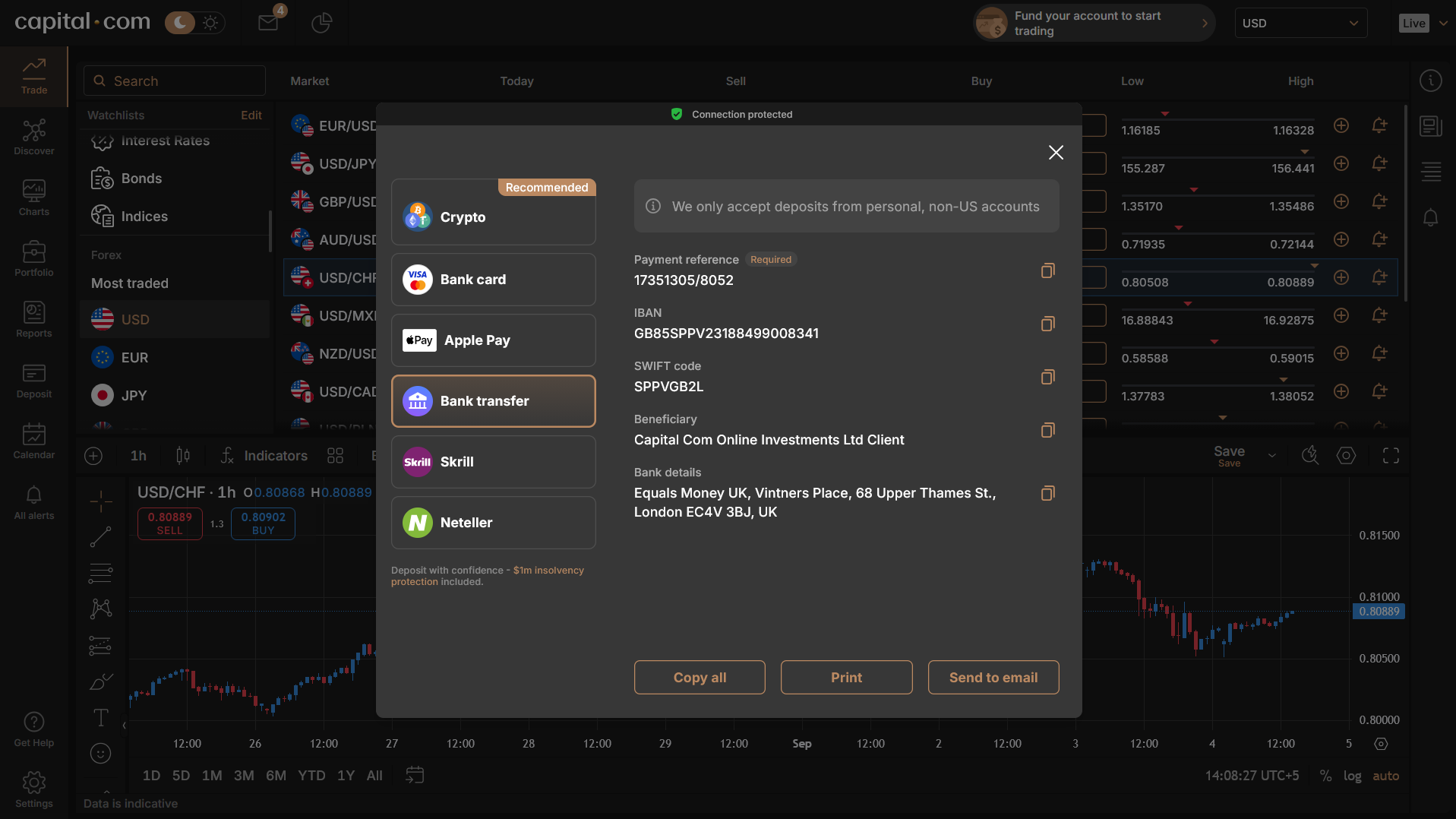
- Debit and credit cards — Visa, Mastercard, Maestro
- Bank transfer — UK bank transfer or international SWIFT
- E-wallets — PayPal, Skrill, Neteller, Apple Pay, Google Pay, Trustly, and others depending on your region
One rule applies to all of them: the payment method must be in your own name. Third-party deposits are rejected under anti-money-laundering rules, so you can’t fund the account from a partner’s card or a business account.
3.3 Step-by-Step: Making Your First Deposit
- Click Fund your account to start trading in the top header, or go to the account menu and select Deposit.
- Enter the amount you want to deposit.
- Choose your payment method.
- Enter your card or wallet details, or copy the bank details provided for a transfer.
- Confirm the payment and complete any 3-D Secure or bank authentication step.
3.4 How Long Deposits Take
Card and e-wallet deposits are usually credited instantly, so you can trade within a minute or two. Bank transfers typically take one to three business days depending on your bank and whether it’s a domestic or international transfer.
If a card deposit doesn’t appear within a few minutes, it’s almost always a bank-side decline rather than a Capital.com issue — some UK banks block payments to trading platforms by default. A quick call to your bank to authorise the transaction usually clears it.
3.5 Deposit and Withdrawal Fees
Capital.com doesn’t charge for deposits or withdrawals, regardless of method. Your bank or wallet provider might, and a currency conversion cost applies if you’re funding a GBP account from a non-GBP source — which is why matching your account currency to your bank account at signup (Section 3.3) matters.
3.6 How to Withdraw from Capital.com
Withdrawals go back through the same method you deposited with, wherever possible — an anti-money-laundering requirement, not a restriction Capital.com chose. If you funded by card, profits above your original deposit usually have to go to a verified bank account.
To withdraw, open the account menu, select Withdraw funds, enter the amount, choose the destination, and confirm.
Requests are typically processed within 24 hours. E-wallet and card withdrawals often land within a few hours; bank transfers can take up to five business days to show in your account. You’ll also need at least 100% free margin — you can’t withdraw money that’s currently supporting an open position.
| Method | Minimum withdrawal |
| TrueLayer (UK bank transfer) | No minimum |
| Debit/credit card | £20 |
| Apple Pay | £20 |
| Google Pay | £50 |
4. How to Use the Capital.com Demo Account
The demo account is funded with virtual money and runs on live market prices, so everything you do in it behaves exactly as it would with real funds — same spreads, same order types, same platform. It’s free, unlimited, and available whether or not your verification has come through yet.
Use it. The mechanics of placing a trade take about ten minutes to learn, and there’s no reason to pay for that learning with real money.
4.1 How to Switch Between Demo and Live
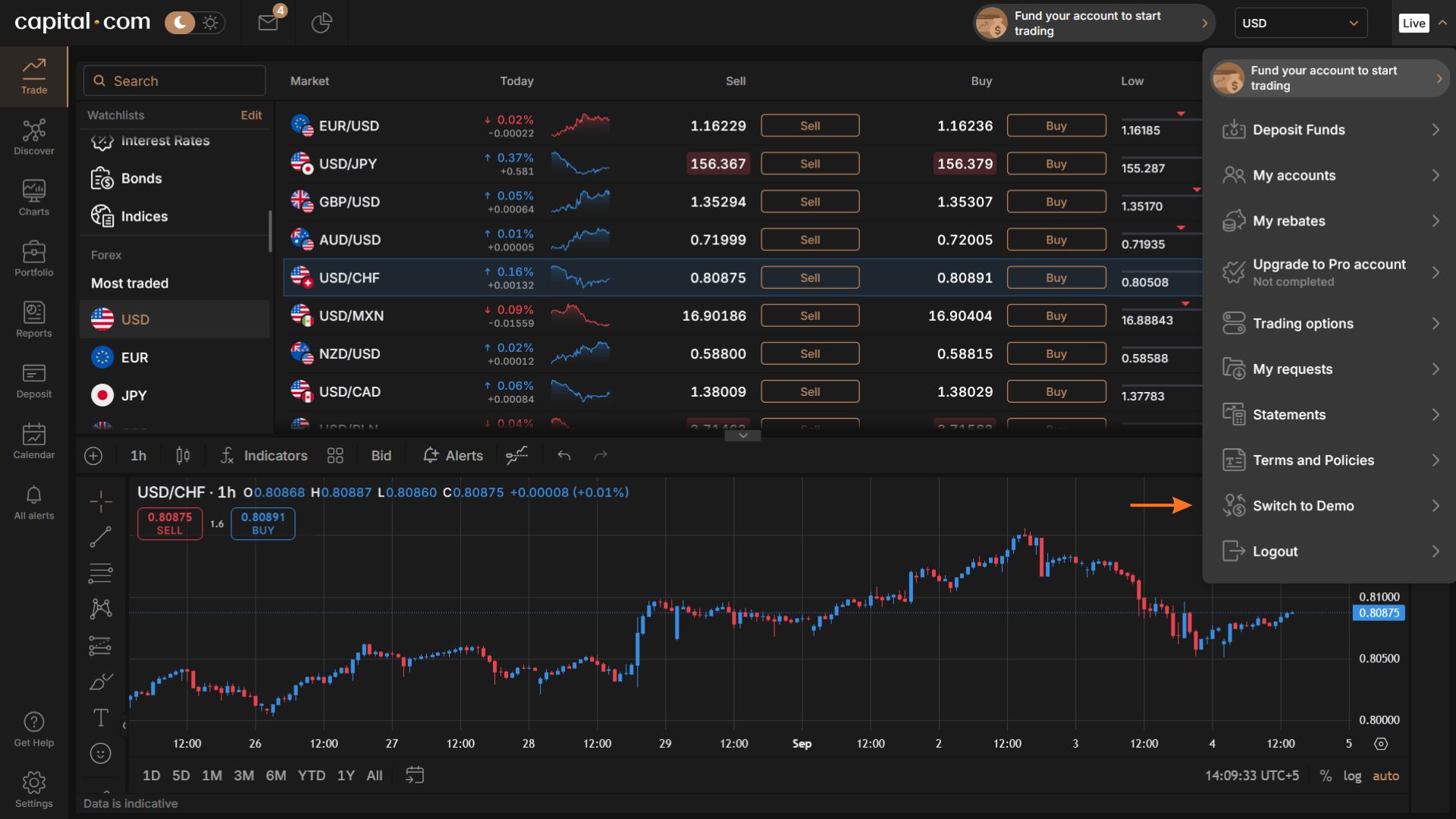
Look at the top-right corner of the platform. It shows which account you’re currently on. If it says Live, click it and a dropdown opens. Near the bottom of that drop-down you’ll find Switch to demo — click it and you’re moved across immediately.
Switching back is the same process in reverse. Your open positions on each account are kept entirely separate, so nothing you do on demo touches your live balance.
4.2 How to Reset Your Demo Balance
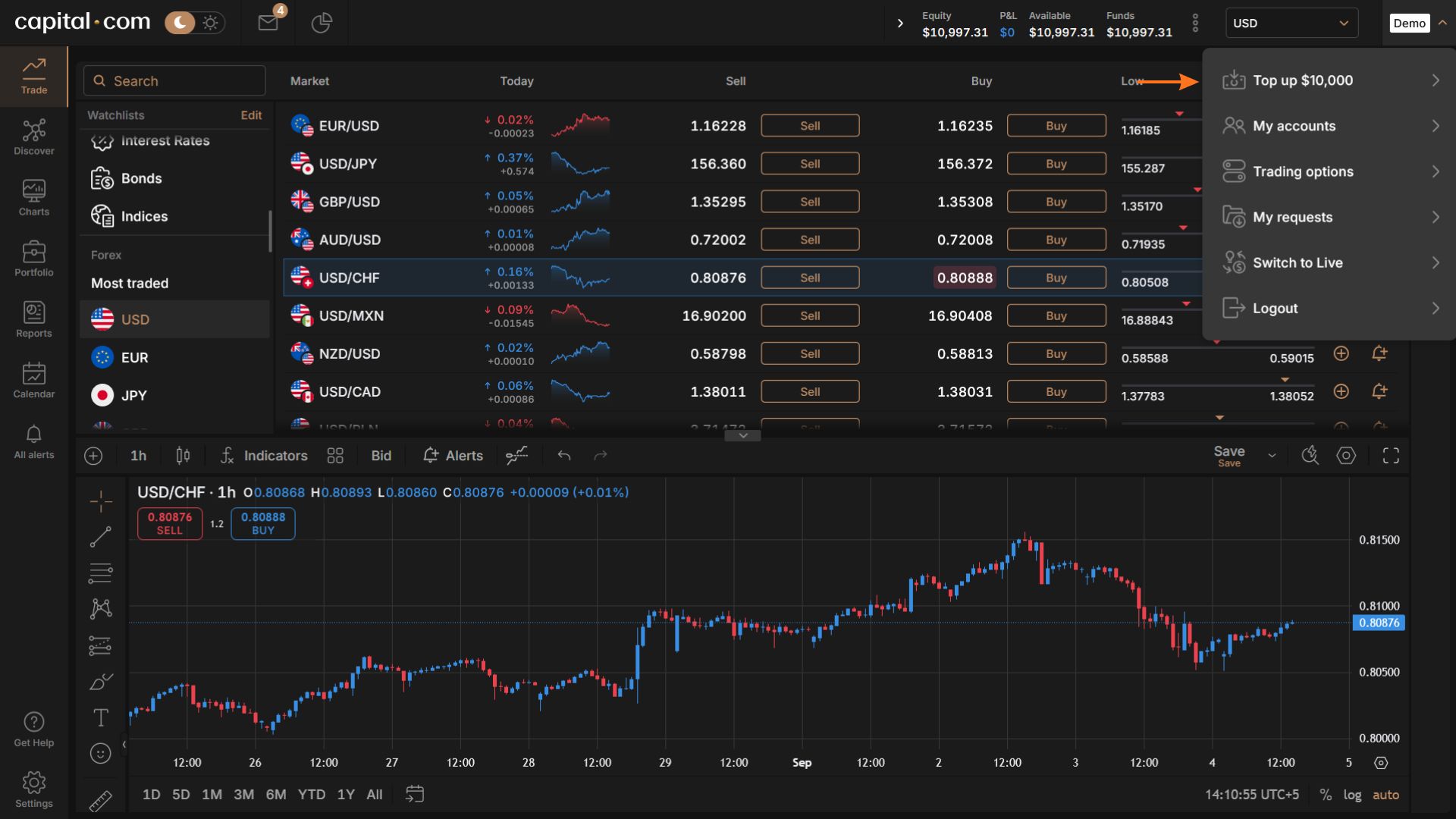
If you’ve blown through your virtual funds — which, honestly, most people do at least once — topping up takes two clicks.
Click Demo in the top-right corner. The first option in the dropdown is Top up $10,000. Click it and the balance is credited straight away. You can do this as often as you need.
4.3 How to Create an MT4 Demo Account
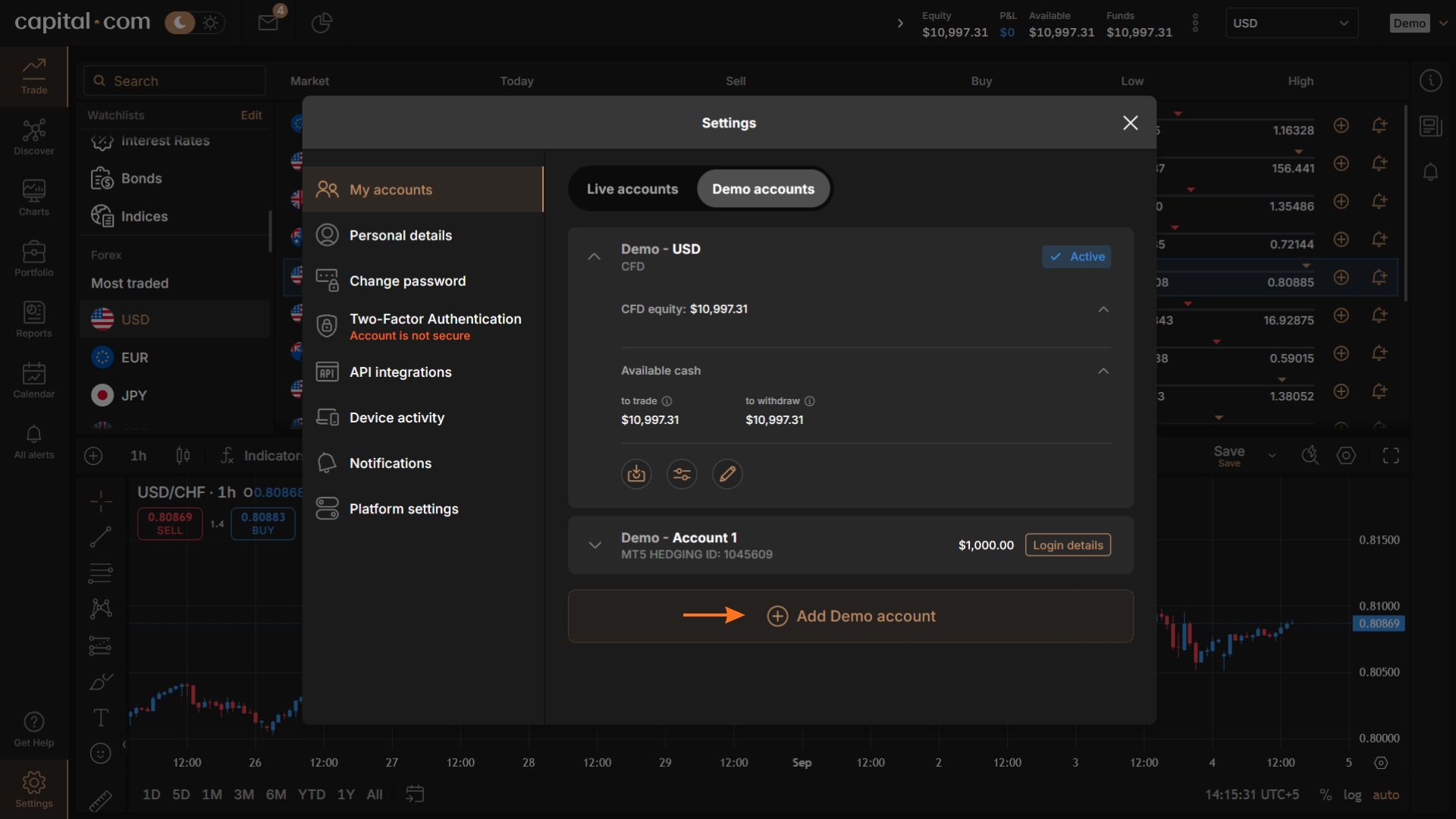
If you’d rather practise in MetaTrader 4 than on the Capital.com platform, you’ll need to create a separate MT4 demo account. It’s free, and the sequence is:
- Switch to demo first using the steps in 6.1. You can’t create a demo MetaTrader account from the live side.
- Click Demo in the top-right corner, then select My accounts.
- Open the Demo account tab and click Add account.
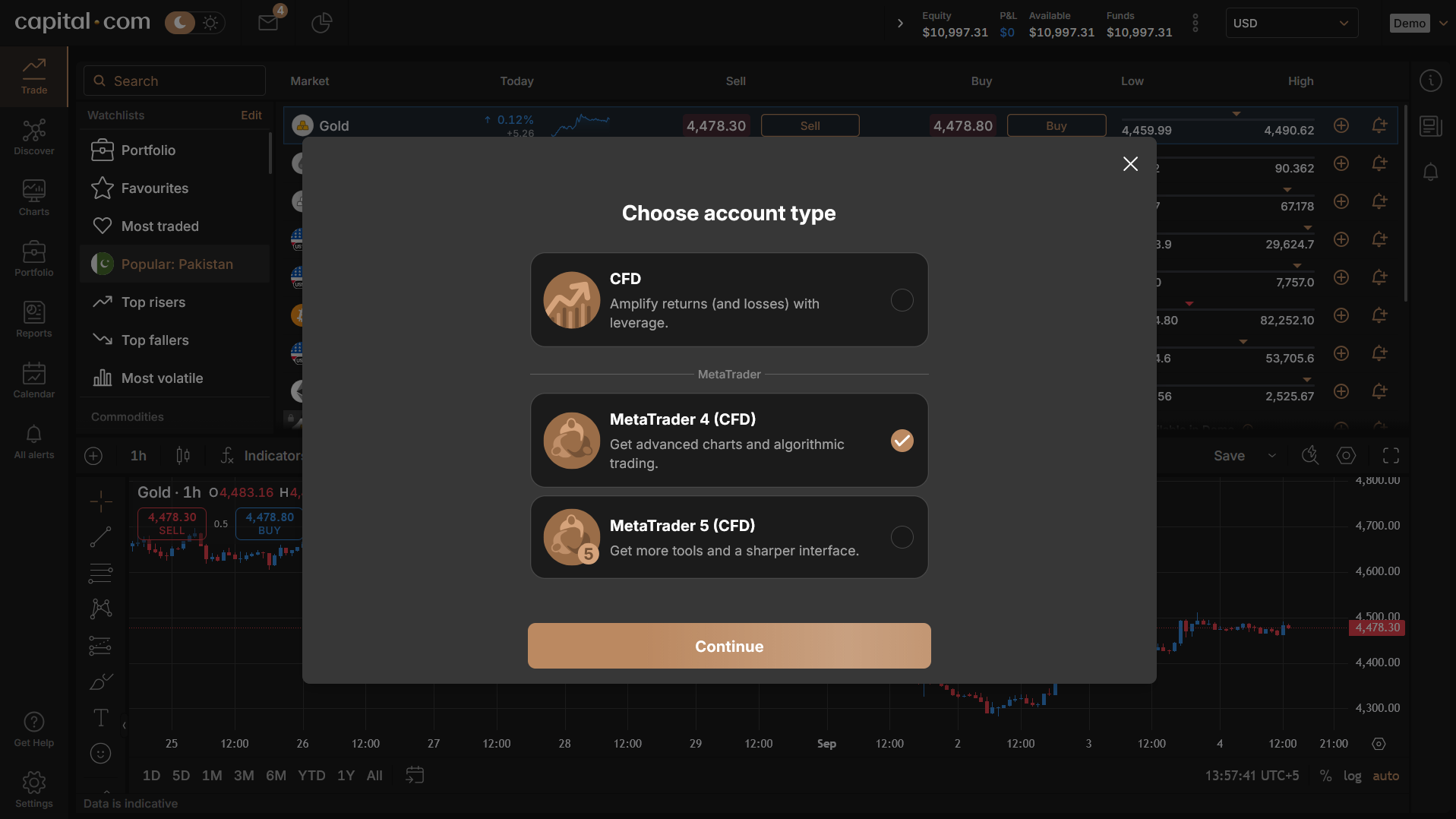
- Select MT4 CFD account and click Continue.
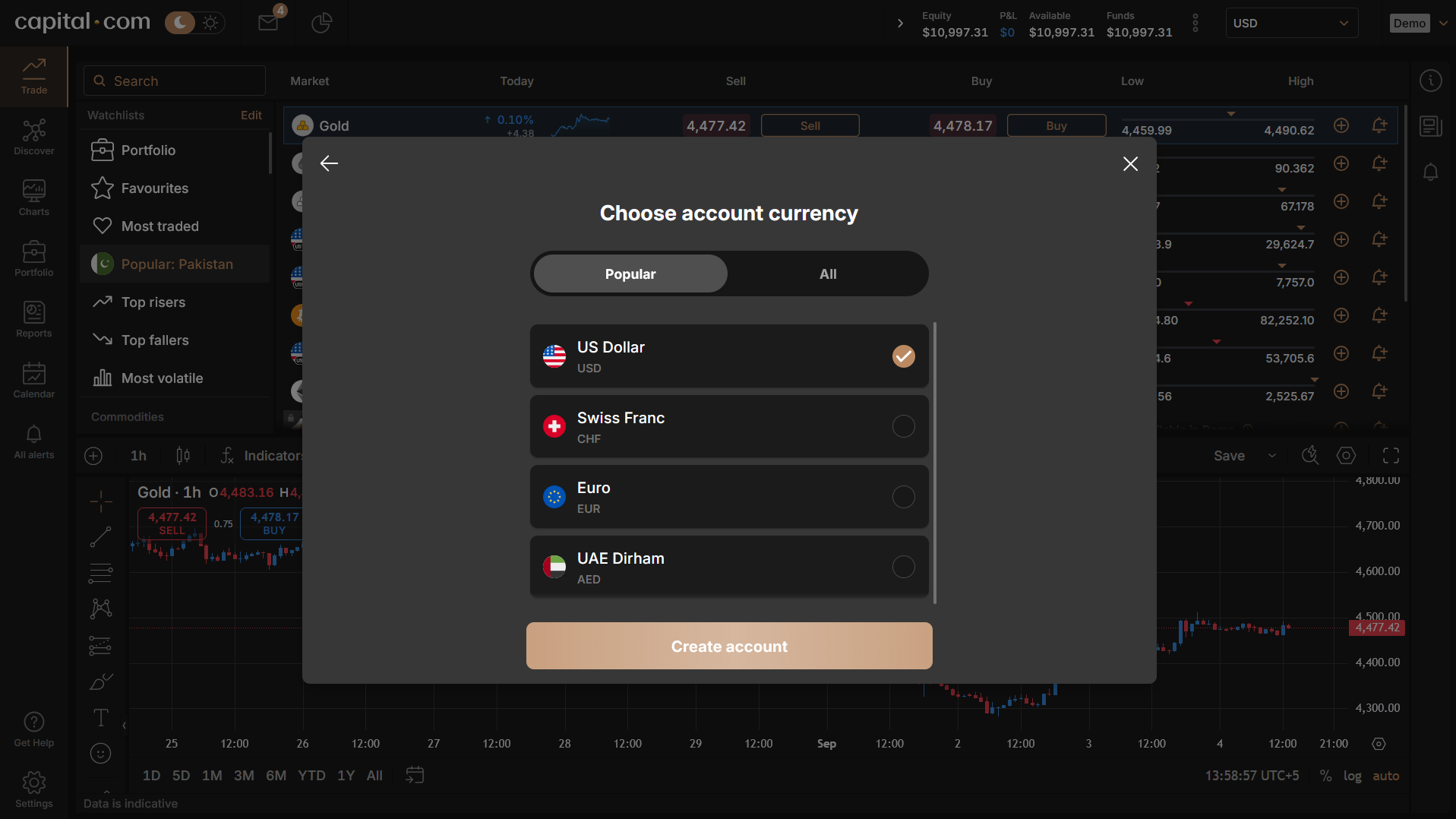
- Choose your account currency and click Create account.
- Enter your password and click Continue.
The account is created and you’re shown your MT4 credentials — login number, password and server name. Save all three somewhere safe. You’ll need them to log in from the MetaTrader 4 terminal, and the password isn’t shown again afterwards.
4.4 What to Actually Practice Before Going Live
Clicking around aimlessly isn’t practice. Work through this list instead, and only move to real money once every item is second nature:
- Open a market order, then close it manually. Check the P&L matches what you expected.
- Open a position with a stop loss and take profit attached from the deal ticket — not added afterwards.
- Place a limit order below the current price and let it fill.
- Open a position and watch what the spread costs you the instant it opens. That negative number at entry is the cost of the trade.
- Hold a leveraged position overnight and check the funding adjustment the next day.
- Deliberately size a position too large and watch how quickly the margin level moves against you.
That last one is worth doing on purpose. Seeing a 30:1 position swing your account balance on a small price move teaches something no explanation does.
If you plan to trade in MT4, do this practice there rather than on the web platform. The instrument range in MetaTrader is much narrower than on the Capital.com platform itself, so check the markets you actually want to trade are available before you commit to it.
4.5 What the Demo Won’t Teach You
The demo replicates prices, not psychology. Losing virtual money costs you nothing, so you’ll hold losers longer and cut winners differently than you will with your own money at stake. Slippage and execution during fast markets can also behave more forgivingly than on a live account.
Treat the demo as a place to learn the platform and test a strategy’s logic — not as evidence that you’ll trade the same way when it’s real.
5. How to  Place Your First Trade on Capital.com
 Place Your First Trade on Capital.com
This is the section most people skip to, so a word of caution before the mechanics: placing a trade takes about fifteen seconds once you know where the buttons are. Deciding what to trade, how big, and where you’ll get out is the actual work. Do the reading in 7.3 and 7.4 properly — they’re what separate a trade from a gamble.
Practice everything below on the demo account first.
5.1 Find the Market You Want to Trade
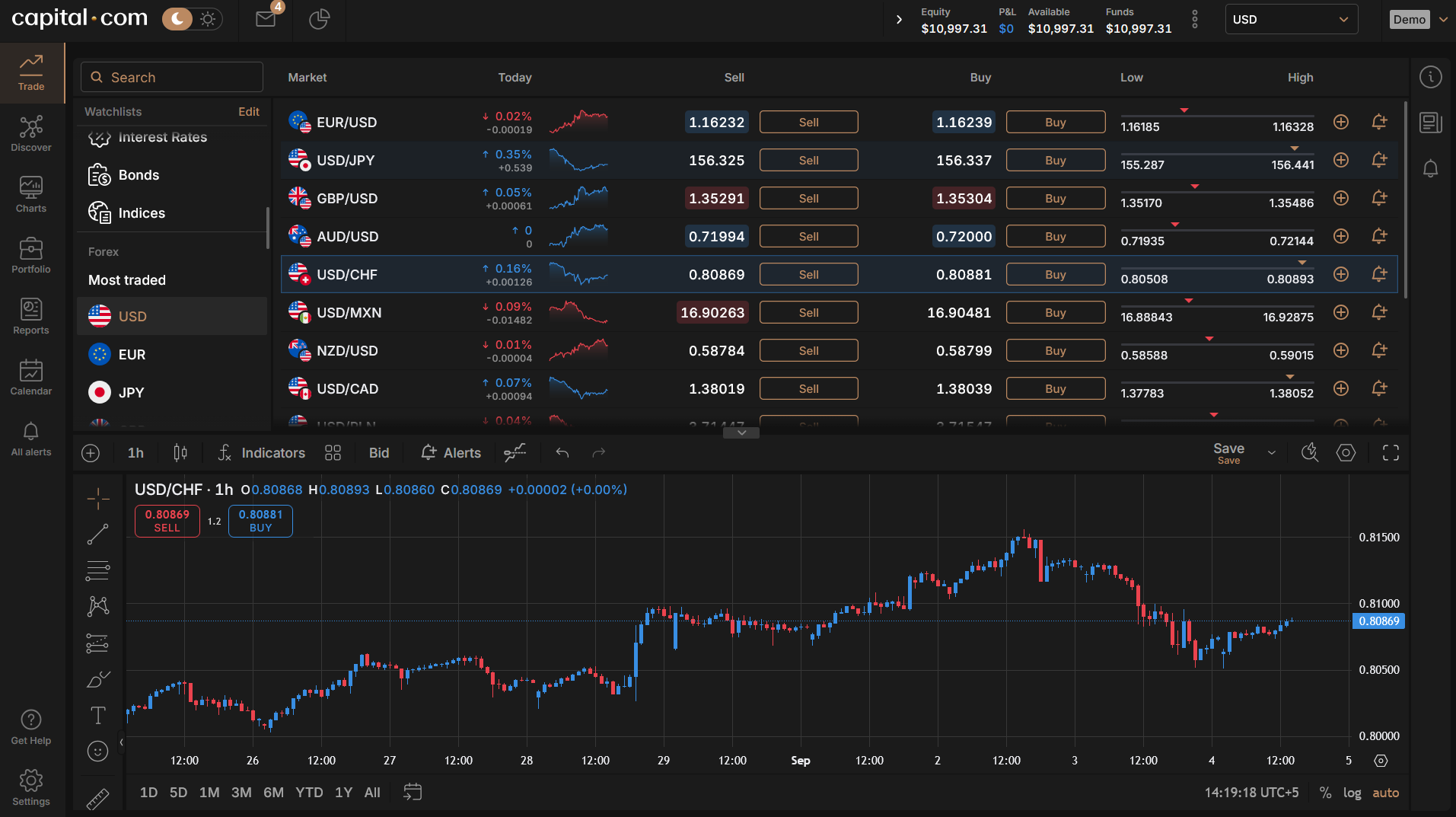
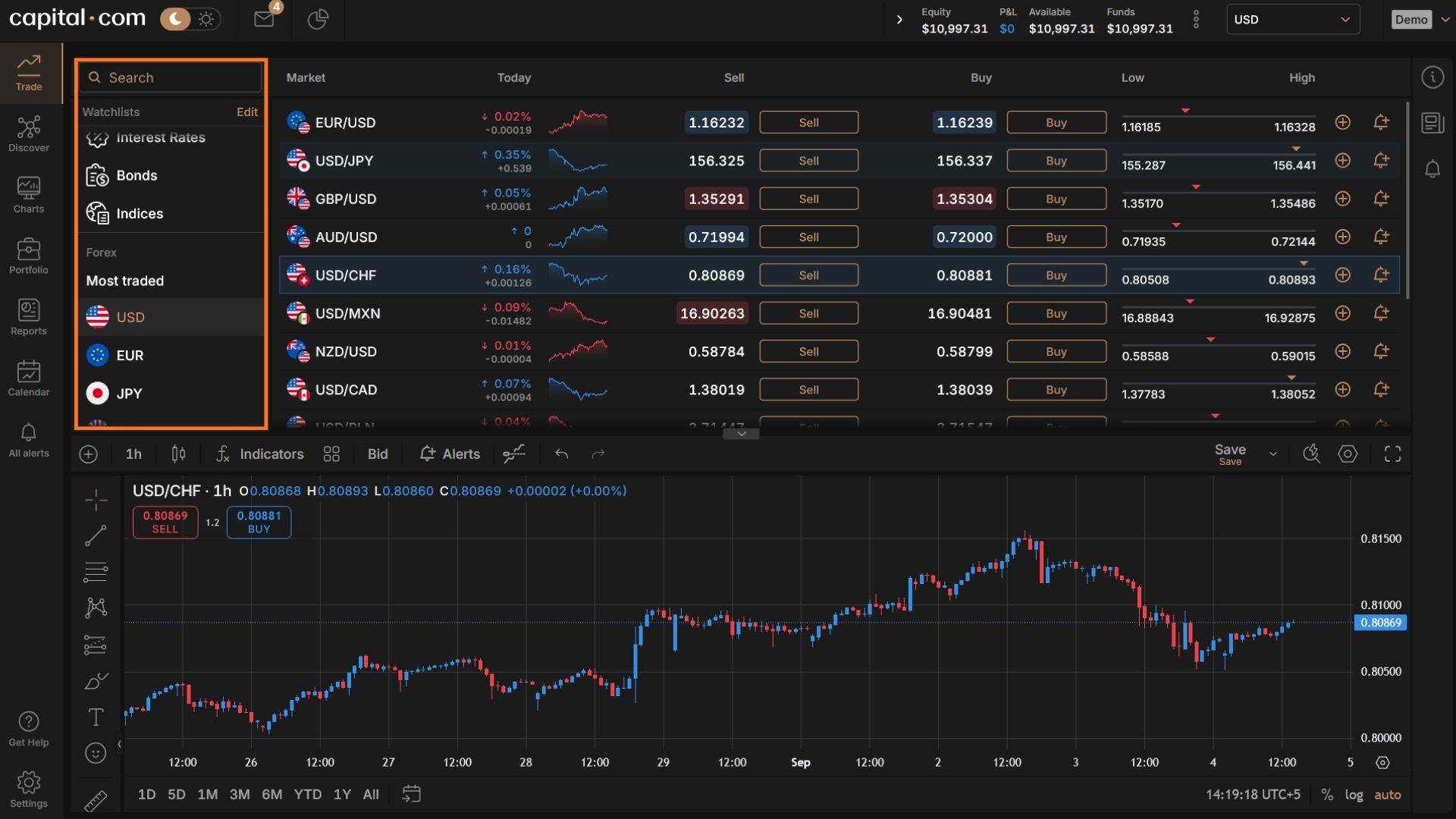
Use the search bar at the top of the platform and type the instrument name or ticker — “FTSE 100”, “Tesla”, “Gold”, “GBP/USD”. Alternatively, browse by category from the left-hand menu, where markets are grouped into shares, forex, indices, commodities, ETFs and bonds.
Click the star icon next to any instrument to add it to your watchlist. Build a short watchlist of three or four markets rather than scrolling through 5,500 of them every session — it’s a small habit that keeps you focused on markets you actually understand.
5.2 Read the Deal Ticket
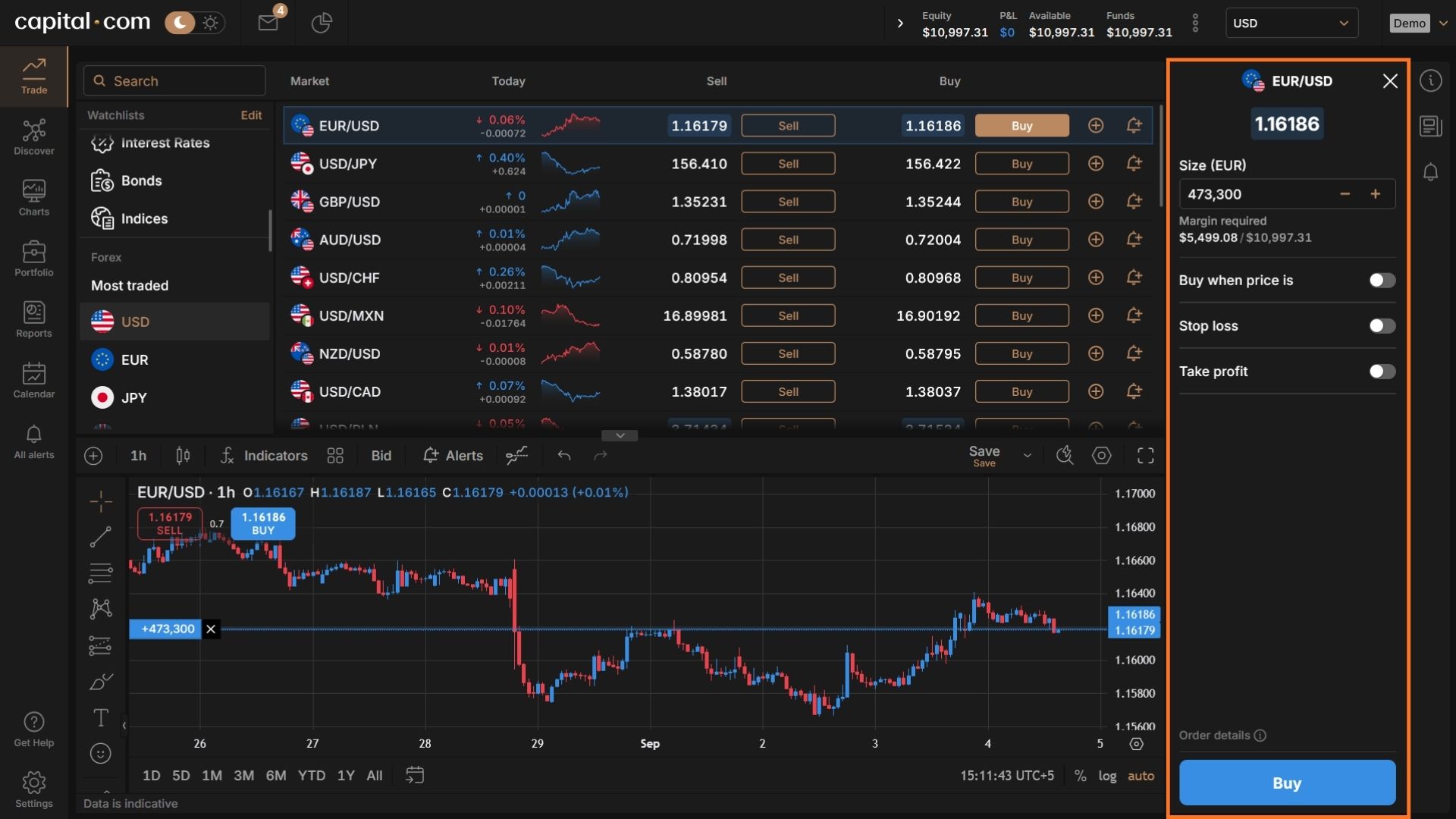
Click an instrument to open its page, then click Buy or Sell to bring up the deal ticket. Two prices are shown:
- The sell (bid) price on the left — what you get if you sell
- The buy (ask) price on the right — what you pay if you buy
The gap between them is the spread, and it’s your cost of trading. You pay half when you open the position and half when you close it. This is why every trade shows a small loss the instant it opens — you haven’t done anything wrong; you’ve paid the spread.
Buy means you profit if the price rises. Sell (going short) means you profit if it falls. Both are available on every instrument — one of the few genuine advantages of trading derivatives rather than owning assets.
[IMAGE: deal ticket showing buy and sell prices with the spread]
5.3 Set Your Position Size
How size is expressed depends on which account you chose in Section 3.13:
- On a CFD account, you enter a number of units — 100 Tesla CFDs, 1 lot of GBP/USD, 10 units of Gold.
- On a spread betting account, you enter an amount in pounds per point — £2 per point on the FTSE 100 means every one-point move gains or loses you £2.
The ticket shows your total position value and the margin required underneath. Watch both numbers as you change the size — this is the fastest way to internalise what leverage is actually doing.
The sizing rule that matters: decide how much you’re prepared to lose on the trade first, then work backwards to the size. If you have £1,000 and you’re willing to risk 1% (£10), and your stop is 20 points away from your entry, your position size is £0.50 per point. Not £5, because that’s what felt right. Section 12 goes deeper on this.
5.4 Understand the Leverage Being Applied
You don’t set leverage on Capital.com in the way you would on some brokers. It’s determined by the instrument and capped by FCA rules for retail clients:
| Market | Maximum leverage | Margin required |
| Major forex pairs | 30:1 | 3.33% |
| Major indices, gold, non-major forex | 20:1 | 5% |
| Other commodities, minor indices | 10:1 | 10% |
| Individual shares | 5:1 | 20% |
At 30:1 on GBP/USD, a £330 margin deposit controls a £10,000 position. A 1% move in your favour makes roughly £100 — a 30% return on the margin you put up. A 1% move against you loses the same. That symmetry is the whole point, and it’s why the loss statistics look the way they do.
If you want exposure without leverage, the 1X account trades on a 1:1 basis with no margin calls and no overnight funding on shares.
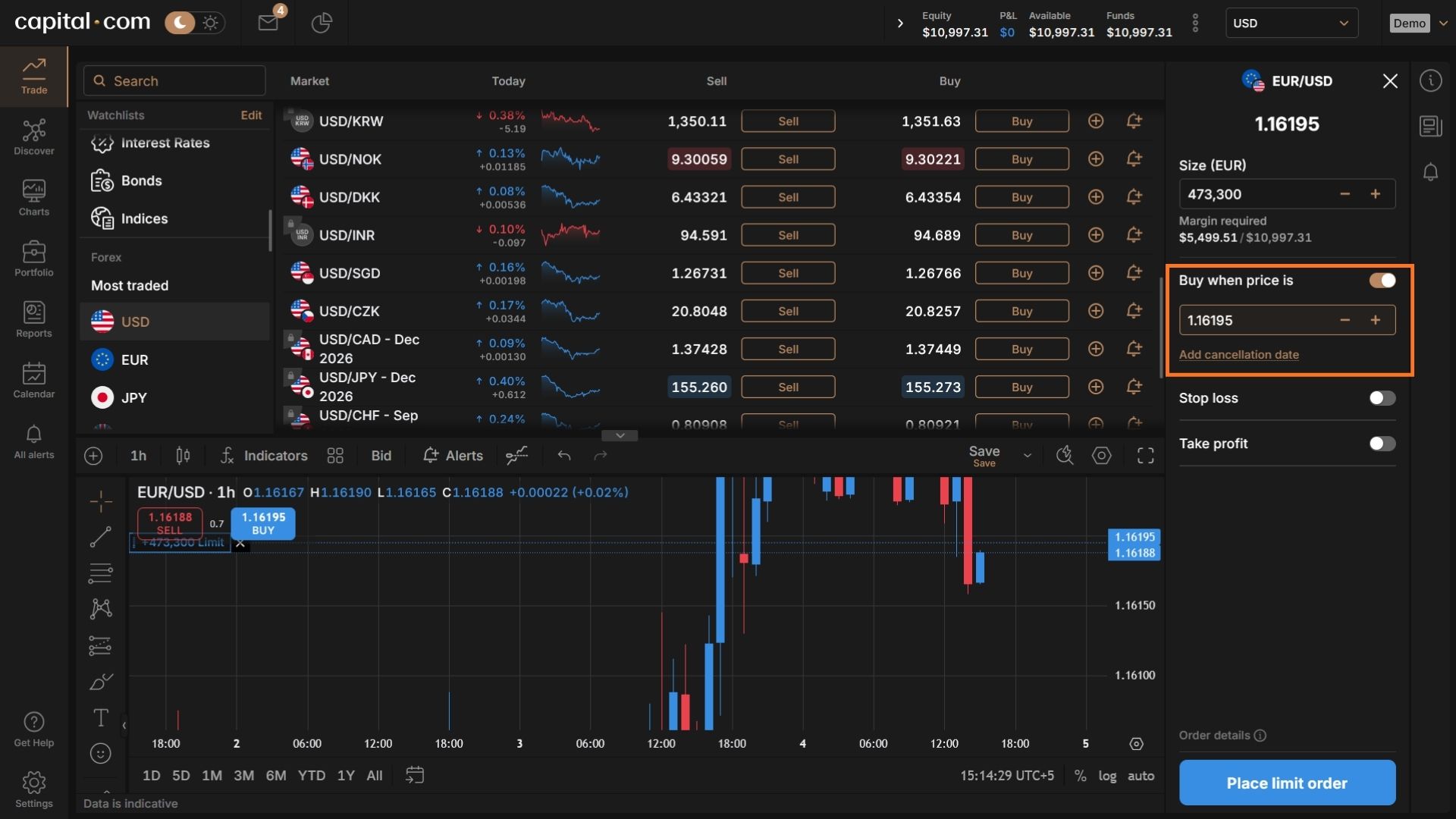
5.5 Choose Your Order Type
The Capital.com platform supports four order types:
- Market order — executes immediately at the current price. What you’ll use most as a beginner.
- Limit order — executes only at a price better than the current one. Use it to buy a dip or sell into a rally without watching the screen.
- Stop order — executes once the price moves through a level you set, used to enter on a breakout.
- Trailing stop — a stop that follows the price in your favour and locks in gains as the position moves. Covered in Section 8.
For your first trade, use a market order. Pending orders are useful, but they add a layer of things that can go wrong while you’re still learning the interface.
5.6 Attach Your Stop Loss and Take Profit
Before you click confirm, set your exit levels on the ticket itself. Section 8 covers exactly how — but the principle is that you attach them now, not after you’re in the position and watching it move.
5.7 Review and Confirm
Check four things before you click:
- Direction — buy or sell, and is it the one you meant?
- Size — does the margin figure match what you expected?
- Stop loss — is it set, and is the loss at that level one you can absorb?
- Instrument — the right Tesla, the right gold contract, the right index.
Then click Buy or Sell to execute. The position appears immediately in your Portfolio.
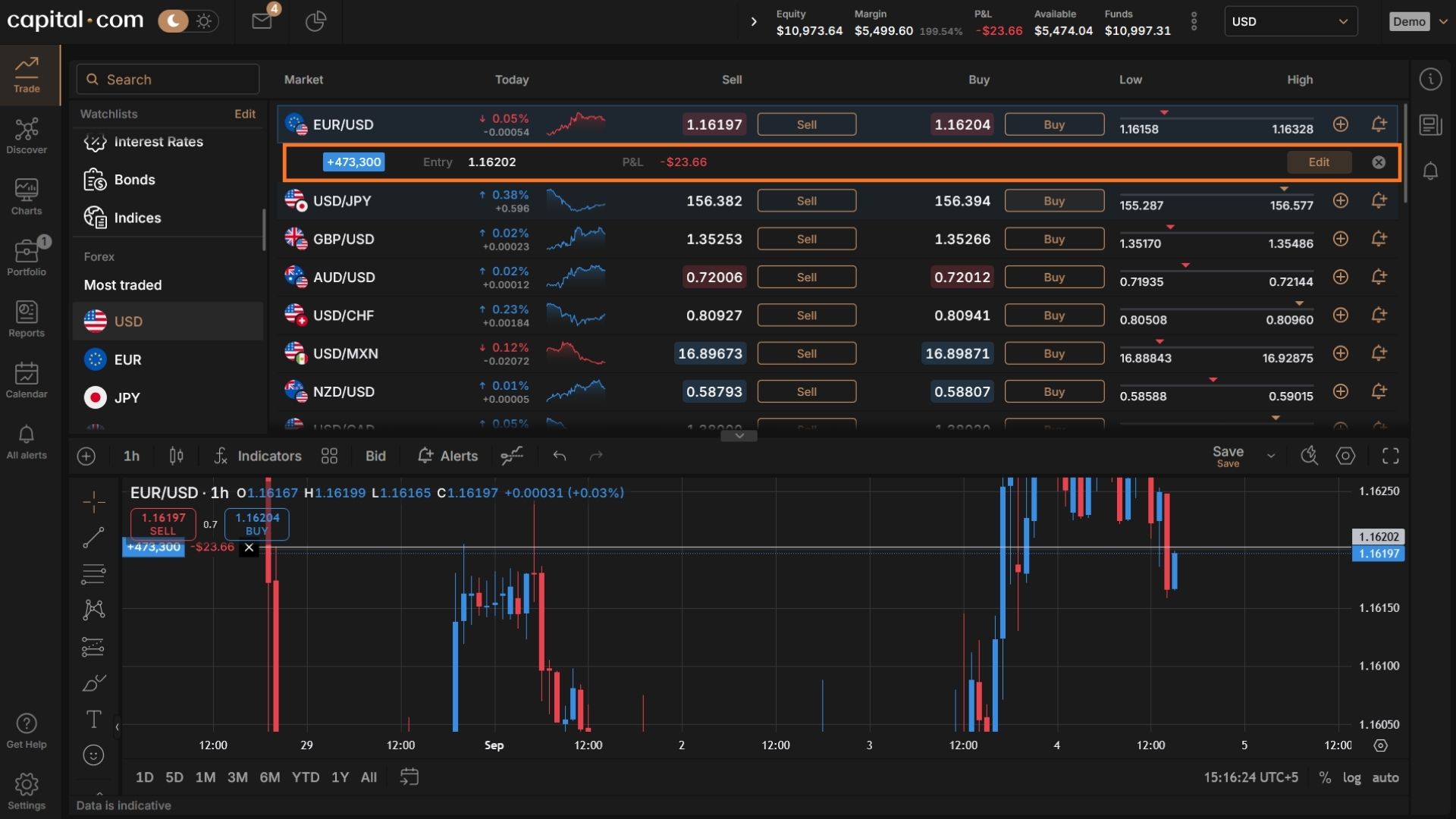
That small negative P&L staring back at you is the spread. It’s supposed to be there.
6. How to Set Stop Loss and Take Profit on Capital.com
A stop loss closes your position automatically if the price moves against you by a set amount. A take profit does the same when the price moves in your favour. Together they define your exit before you’ve had a chance to talk yourself out of it.
Capital.com makes both available directly on the deal ticket, which is where they belong.
6.1 Set Them Before You Enter, Not After
This is the part most beginners get wrong, so it’s worth being blunt about it.
Once you’re in a losing position, your judgement about where to exit is compromised. You’ll widen the stop “just a bit” to give it room. You’ll decide the level you picked was arbitrary anyway. Everyone does this — it’s not a character flaw, it’s how the brain handles a loss it hasn’t accepted yet.
The fix is mechanical: decide your exit levels while you have nothing at stake, attach them to the order, and let them run. A stop you set calmly is worth more than any amount of discipline you’re relying on later.
6.2 How to Set a Stop Loss on the Deal Ticket
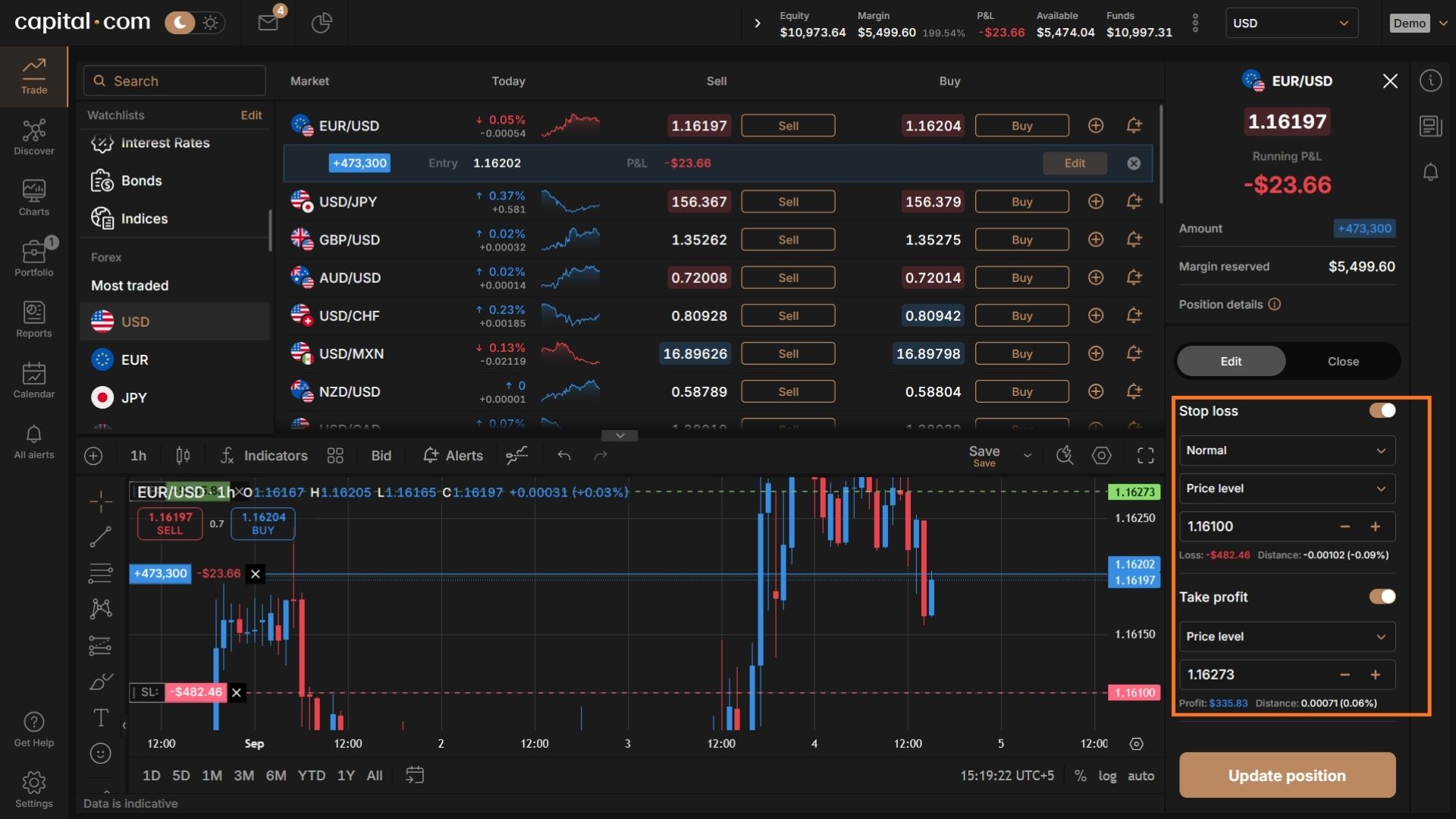
On the deal ticket, tick the Stop loss box. You can then define the level in one of two ways:
- By price — enter the exact price at which you want out
- By amount — enter the loss in your account currency, and the platform calculates the price level
The ticket displays your maximum loss at that level before you confirm. Read that number. If it makes you uncomfortable, your position is too large — reduce the size rather than moving the stop further away.
Place the stop where your reason for entering the trade is proven wrong: below the recent swing low on a long, above the swing high on a short. Not at a round number that feels tidy, and not so close to your entry that ordinary noise takes you out.
6.3 How to Set a Take Profit
Tick the Take profit box and set the level the same way — by price or by amount. The ticket shows your potential profit at that level.
The useful discipline here is comparing the two numbers side by side before you confirm. If your take profit is £30 and your stop loss is £60, you need to be right twice as often as you’re wrong just to break even. Most traders aim for a take profit at least as far away as the stop, and often further.
6.4 Guaranteed Stop Loss (GSLO)
A standard stop is triggered at your level but filled at the next available price. In a fast market or over a weekend gap, that can be meaningfully worse than the level you set — a share that closes at 100 and opens at 88 will fill your stop near 88, not at 95.
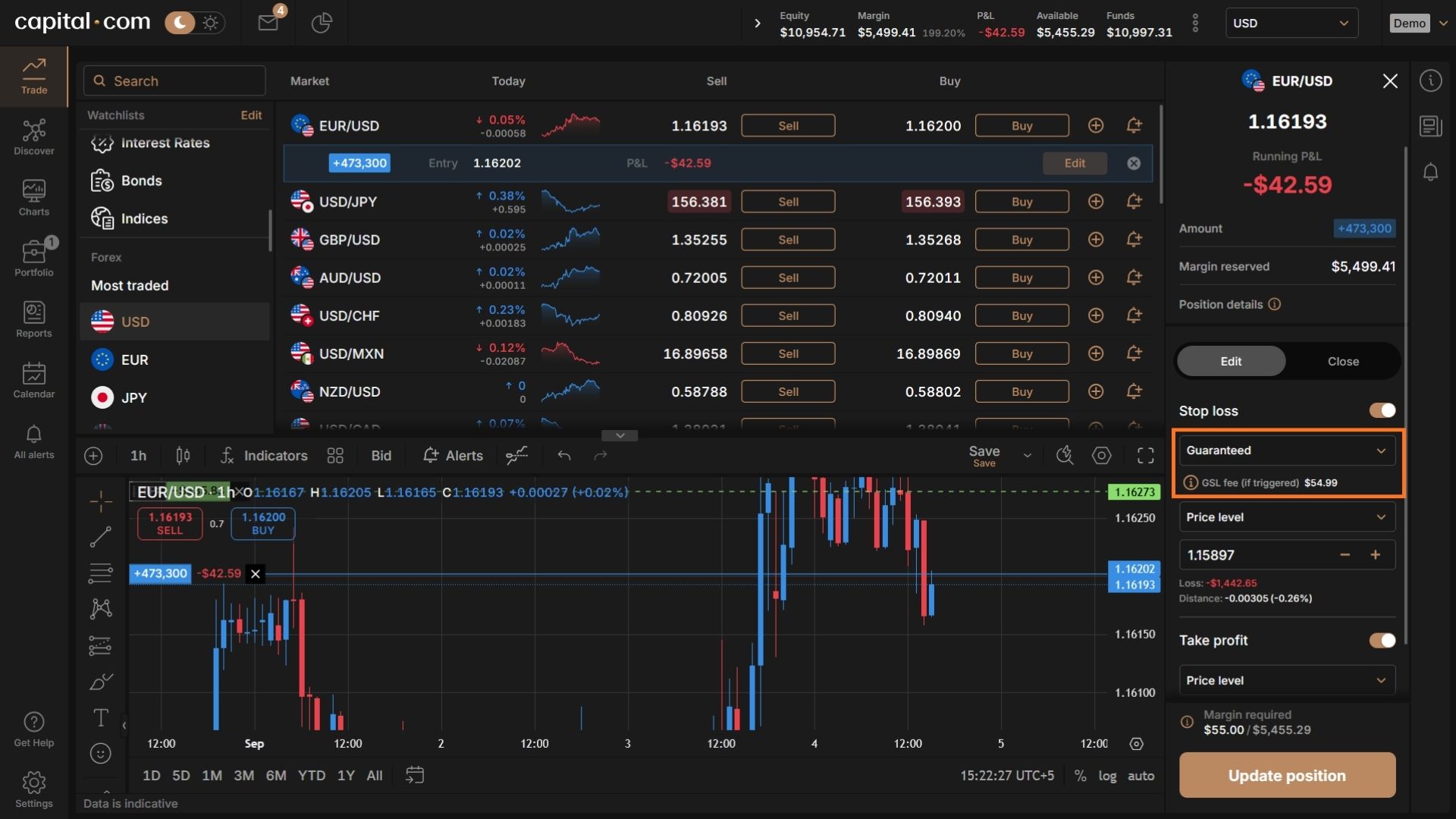
A guaranteed stop-loss order removes that risk. It closes your trade at exactly the price you specify, regardless of gapping or slippage.
The cost works differently from most fees on the platform:
- The GSLO premium is only charged if the GSLO is actually triggered. Set one and close the trade normally, and you pay nothing.
- The fee is calculated as GSLO premium (%) × position open price × quantity.
- The applicable fee is shown on the deal ticket when you select a GSL, so you always know the cost before you commit.
Worth using on positions held over a weekend, through an earnings announcement, or ahead of a scheduled economic release. Less worth paying for on a liquid major forex pair during London hours, where gapping risk is low.
6.5 Trailing Stops
A trailing stop follows the price as it moves in your favour, staying a set distance behind, and stops moving when the price turns. It locks in gains without you needing to watch the chart.
Set the trailing distance wide enough that normal fluctuation doesn’t trigger it. A trailing stop set 5 points behind a market that routinely moves 20 points in an hour will close you out almost immediately.
Trailing stops are not guaranteed — they’re subject to the same slippage as any standard stop.
6.6 How to Edit or Remove Stops on an Open Position
Open the Portfolio tab, click the position, and you can add, adjust or remove the stop loss and take profit levels. On the chart you can also drag the stop and take profit lines to new levels directly.
One rule: moving a stop closer to protect gains is good practice. Moving it further away because the trade is going against you is how small losses become large ones. If you find yourself doing the second, close the position instead.
7. Managing and Closing Positions on Capital.com
Getting into a trade is the easy half. This section covers what happens between entry and exit, and how to get out cleanly.
7.1 Reading Your Portfolio
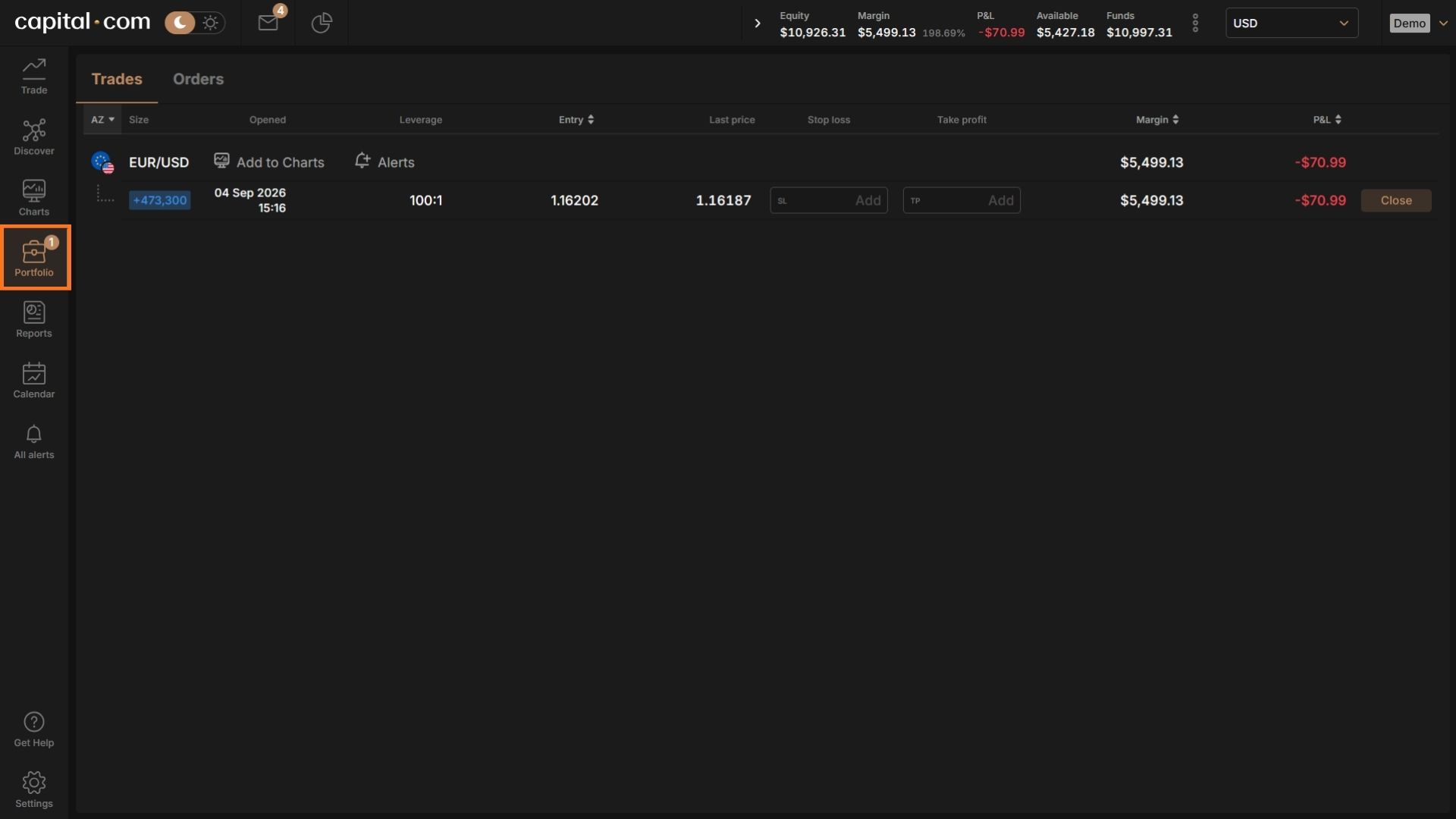
The Portfolio tab is where every open position lives. For each one you’ll see:
- Direction and size — buy or sell, and the quantity or pounds per point
- Open price and current price
- Unrealised P&L — what the position is worth right now if you closed it
- Stop loss and take profit levels, if set
- Margin committed to the position
Above the list you’ll find your account-level figures: balance (settled funds), equity (balance plus or minus unrealised P&L), used margin, and available margin. Equity is the number that actually matters — it’s what your account is worth if you closed everything right now.
7.2 How to Close a Position
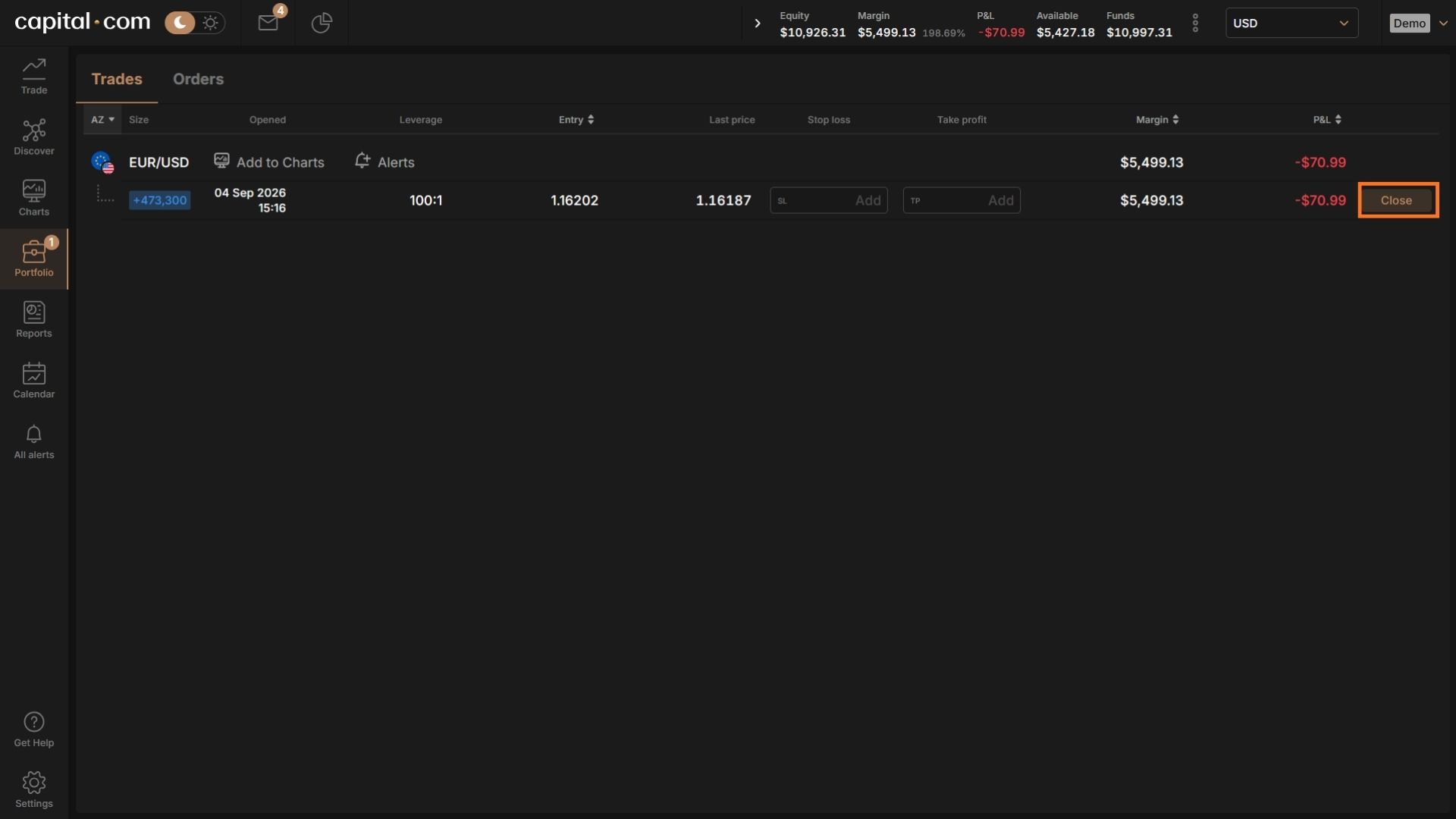
Click the position in your Portfolio and select Close. You’ll be shown the current price and the realised profit or loss before confirming.
You can also close directly from the chart or from the position row itself, depending on which view you’re in. If you have several positions open, there’s a close-all option that shuts everything at once — useful before you step away from the screen, less useful as a panic button.
Once closed, the trade moves to your history and the profit or loss is added to your balance.
7.3 How to Partially Close a Position
You don’t have to exit all at once. Select the position, choose Close, and reduce the quantity to close only part of it — for example, closing half a winning position to bank some profit while leaving the rest to run with the stop moved to break-even.
The remaining portion keeps its original open price, and any stop loss or take profit stays attached to what’s left.
7.4 Margin Levels and Close-Outs
Your margin level is equity divided by used margin, shown as a percentage. It falls as positions move against you.
Under FCA rules, Capital.com must close your positions automatically once your margin level drops to 50% of the margin required to keep them open. You’ll typically be warned before that point, but the close-out is automatic and not something you can opt out of.
Negative balance protection means you can’t lose more than the money in your account as a retail client, even if a market gaps through the close-out level.
Neither of these is a safety net you should plan around. They’re the last line of defence after your own stop losses have failed — if you’re regularly getting close to a margin close-out, your positions are too big for your account.
7.5 Overnight Positions
Any leveraged position still open at the daily cut-off attracts an overnight funding adjustment. It’s small on a single night and easy to ignore, but it compounds on positions held for weeks. Section 11 covers how it’s calculated and when it doesn’t apply.
If you’re closing out at the end of each session anyway, this never affects you.
7.6 Reports and Statements
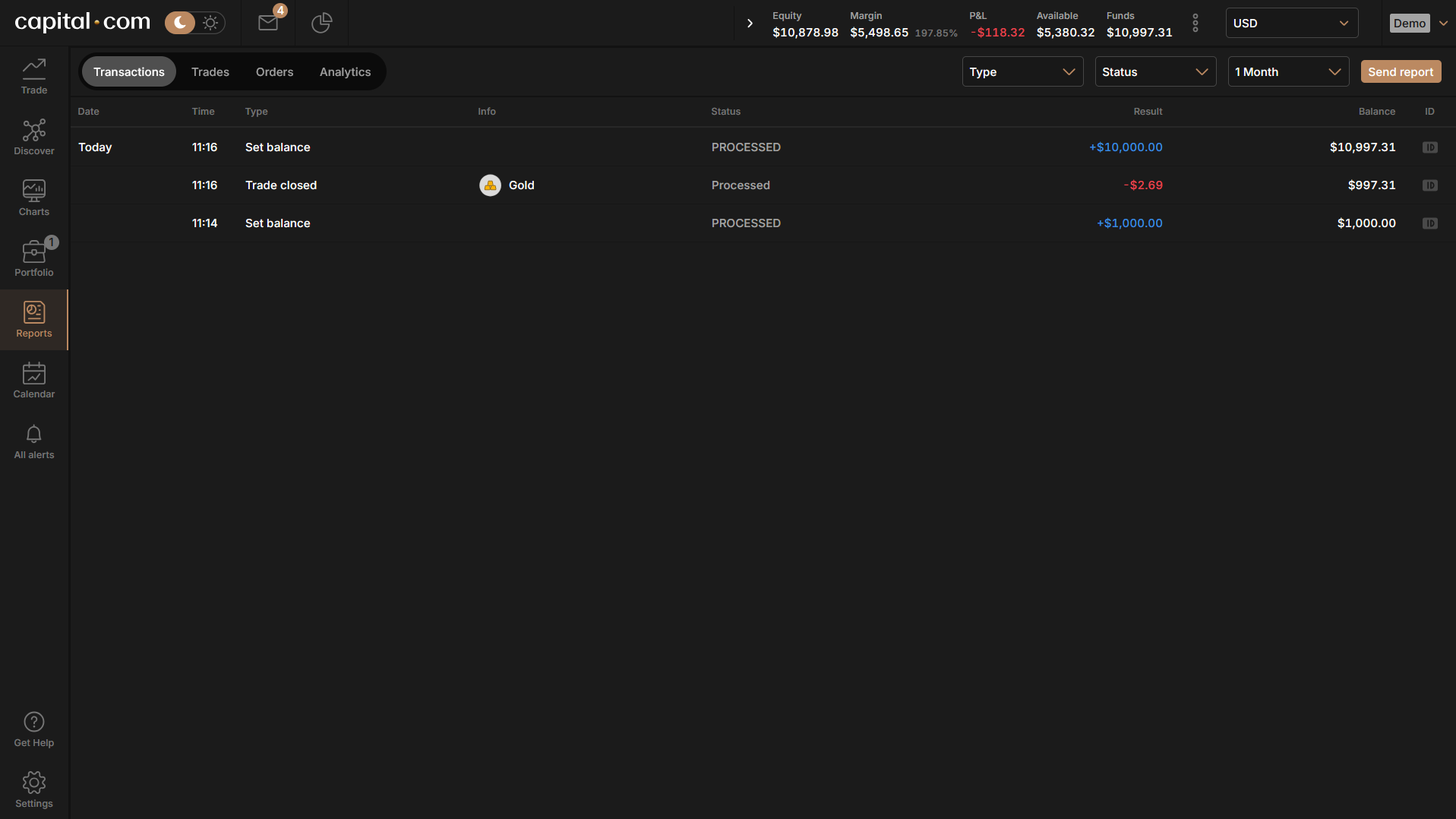
The Reports section holds your full trade history, closed-position P&L, funding adjustments, and any currency conversions applied — including the exchange rate used on each one.
Download it periodically. You’ll need it for tax purposes if you’re trading a CFD account, and reviewing your own closed trades is the cheapest form of trading education there is.
8. Capital.com Fees, Spreads and Overnight Costs
Capital.com doesn’t charge commission, and it covers deposit and withdrawal costs, account opening and account closure. That makes the platform look free at first glance. It isn’t — the costs are simply built into the trade rather than itemised alongside it.
There are three you need to understand.
8.1 The Spread Is Your Main Cost
Every market has a buy price and a sell price, and the gap between them is the spread. Half is paid when you open the position and half when you close it.
Take a spread bet at £1 per point where the spread is 1 point: the total spread cost is £1. That’s why a new position shows a small loss immediately — the market has to move in your favour by the width of the spread before you’re at break-even.
Spreads are variable, not fixed. They tighten during liquid hours — the FTSE 100 during London trading, EUR/USD across the London–New York overlap — and widen during quiet periods and around major news releases. Typical figures quoted are around 0.6 pips on EUR/USD and roughly 0.8 points on US 500 during peak hours, but Capital.com doesn’t publish a fixed minimum for every market.
The practical implication: don’t judge cost from a headline average. Open the demo account, quote the specific markets you intend to trade at the times you intend to trade them, and compare those numbers against another broker.
8.2 Overnight Funding Explained
Hold a leveraged position past the daily cut-off and an interest adjustment applies. Whether you pay it or receive it depends on your direction and the underlying rate.
The calculation has two parts: a benchmark rate that tracks the currency of the underlying market, plus Capital.com’s own daily fee of 0.01096% (roughly 4% annualised).
The benchmark follows the market’s currency — GBP-denominated markets use SONIA, USD-denominated markets use SOFR.
Worked example — a Barclays share CFD. Barclays trades in GBP, so the benchmark is SONIA. Say SONIA is 4.98260% annually, which is 0.01365% daily.
- Long position: you pay Capital.com’s fee plus SONIA — 0.01096% + 0.01365% = 0.02461% per night. On the position size in Capital.com’s own example, that’s £2.37.
- Short position: you receive the difference between SONIA and the fee — 0.01365% − 0.01096% = 0.00269%, a credit of £0.26.
So going short can actually earn you a small overnight credit when rates are high. Going long always costs.
The charge is trivial on one night and meaningful over a month. A £2.37 nightly fee on a position held for six weeks is roughly £100 — often more than the spread that got you in.
8.3 When Overnight Funding Doesn’t Apply
For most markets, an unleveraged (1:1) position doesn’t incur overnight funding at all. That’s the basis of the 1X account: hold shares long-term without the funding drag.
There are exceptions where funding applies regardless of leverage — Capital.com lists these on its charges page, and the adjustment also applies to forward contracts. Check the specific instrument before assuming a 1:1 position is free to hold.
8.4 Currency Conversion
If you trade a market denominated in a currency other than your account’s base currency, a conversion cost applies to the profit or loss when you close.
- Retail clients pay a 0.7% mark-up; professional clients pay 0.5%.
- The fee is built into the exchange rate used, not charged as a separate line item.
- The all-in rate applied is visible in the Reports section and when you close a position.
Example: a GBP account, a US stock trade closed with a $12.41 profit. That $12.41 converts to sterling at a rate that’s 0.7% worse than spot.
This is why matching your account currency to your bank account at signup matters — and why it’s worth knowing that trading US shares from a GBP account carries a cost that trading the FTSE 100 doesn’t.
8.5 Guaranteed Stop-Loss Premium
Covered in Section 8.4, but restated here for completeness: the GSLO fee is charged only if the guaranteed stop is actually triggered, calculated as premium % × open price × quantity, and displayed on the deal ticket when you select it.
8.6 What Capital.com Doesn’t Charge
- No commission on any trade
- No deposit fees
- No withdrawal fees
- No account opening fee
- No fee to close your live account
Your bank or e-wallet provider may apply its own charges — that’s outside Capital.com’s control.
8.7 The Total Cost of One Round-Trip Trade
Pulling it together for a single spread bet at £2 per point on the FTSE 100, held for three nights:
| Cost | Amount |
| Spread (1 point, half on open, half on close) | £2.00 |
| Overnight funding, 3 nights | ~£1.50 |
| Commission | £0.00 |
| Currency conversion (GBP account, GBP market) | £0.00 |
| Total | ~£3.50 |
The market has to move about 1.75 points in your favour before you’re square. Not a lot — but on a strategy taking twenty trades a month, that’s £70 of costs before a single pound of profit. Cost per trade matters more the more you trade.
9. Risk Management Tips for Capital.com Beginners
Everything up to this point was mechanics. This section is the part that decides whether you’re still trading in a year.
Capital.com’s own disclosure states that 61% of retail investor accounts lose money trading spread bets and CFDs with the provider. That number isn’t a warning label bolted on for compliance — it’s the base rate. Assume you’re in it unless you’re doing something different from the majority, and almost everything that separates the two groups is in this section rather than in chart patterns.
9.1 Risk a Fixed, Small Percentage on Every Trade
The single most useful rule in trading: never risk more than 1–2% of your account on one position.
On a £1,000 account, that’s £10–£20 per trade. It sounds trivially small, and that’s the point. At 1% risk, ten consecutive losses cost you about 10% of your account — survivable. At 10% risk, the same losing streak takes roughly 65% of it, and you now need a 185% gain just to get back to where you started.
The maths of drawdown is unforgiving in one direction only. Small losses are recoverable; large ones mathematically aren’t.
9.2 Size the Position from the Stop, Not from the Balance
This follows directly from 12.1, and it’s where most people go wrong in practice. Don’t decide “I’ll put £200 into this trade.” Decide how much you’re prepared to lose, then let your stop distance determine the size.
The formula: position size = risk amount ÷ stop distance in points.
£1,000 account, 1% risk (£10), stop 20 points from entry → £0.50 per point. Same account, same risk, but a tighter 5-point stop → £2 per point.
The risk stays constant. The size flexes. If the resulting size feels too small to be worth trading, the problem is the account balance, not the rule.
9.3 Understand What Leverage Is Actually Doing
Leverage doesn’t increase your risk by itself — position size does. But leverage is what makes an oversized position possible in the first place.
At 30:1 on a major forex pair, £330 of margin controls a £10,000 position. A 1% move earns or costs roughly £100. On a £1,000 account, a single 1% market move against you is a 10% account loss. Currency pairs move 1% on ordinary days.
The FCA caps exist because of exactly this arithmetic. Treat the cap as a ceiling you rarely approach, not a target.
9.4 Set the Stop Before You Enter, and Leave It
Covered in Section 8.1, restated here because it’s the rule most often broken: attach the stop on the deal ticket, and only ever move it in the direction that reduces risk.
If you catch yourself widening a stop, close the trade instead. The impulse to give a losing position “more room” is the mechanism by which a £20 loss becomes a £200 one.
9.5 Account for Costs in Your Expectations
A strategy that makes 3 points per trade on a market with a 1-point spread is giving away a third of its edge before overnight funding. Run the numbers from Section 11.7 against your intended trade frequency — high-frequency strategies need much wider edges than the raw win rate suggests.
9.6 Keep a Trading Journal
Record every trade: what you entered, why, where the stop was, what you exited at, and what you were thinking. Review it monthly.
Almost everyone discovers the same thing — losses cluster around a small number of repeated behaviours. Trading outside plan, oversizing after a loss, entering out of boredom. You can’t fix a pattern you haven’t seen written down, and Capital.com’s Reports section gives you the raw data to build it from.
9.7 Use the Tools That Are Already There
- Guaranteed stops for positions held over weekends or through scheduled announcements, where gapping risk is real.
- The 1X account if you want exposure without leverage or margin calls.
- The demo account for testing any change to your approach before it costs money — it stays available after you go live.
- Learn Hub and Investmate for structured education rather than YouTube’s algorithm.
- The economic calendar so you’re not holding a leveraged position into a rate decision you didn’t know about.
9.8 An Honest Word on Expectations
Trading a leveraged product well is a skill acquired over years, not a source of quick income. If money you need for rent is in the account, the position sizing rules above become impossible to follow — you’ll take profits too early and hold losses too long because you can’t afford otherwise.
Deposit only what you can genuinely lose. Expect the first months to cost money. Judge yourself on whether you followed your own rules, not on the balance — that’s the only variable you actually control.
10. TL;DR
You now have the full path from a blank browser tab to a managed position.
10.1 The Whole Process in One List
- Register with your email, then work through nationality, name, date of birth, address and National Insurance number
- Verify your email and phone
- Answer the FCA-required questions on your finances and trading knowledge
- Accept the terms and choose between a CFD and a spread betting account
- Complete KYC — ID document, liveness selfie, proof of address
- Deposit from £20 by card or e-wallet, or £50 by bank transfer, once verification clears
- Practise on the demo account until the deal ticket is second nature
- Place your first trade with a stop loss and take profit attached from the start
- Manage the position from the Portfolio tab and close it when your plan says to
10.2 The One Thing Worth Doing Before Anything Else
Open the demo account today and don’t fund the live one until you’ve placed twenty demo trades — each with a stop loss set before entry, each sized at 1% risk, each logged in a journal.
That takes a week or two. It costs nothing. And it’s the difference between learning the platform with your own money and learning it with virtual money, which is the only meaningful choice available to you right now.
10.3 What to Read Next
Section 11 is worth a second read before you deposit — the spread and overnight funding numbers are the ones that quietly decide whether a marginal strategy is profitable. Section 12 is worth reading again after your first losing streak, which is when it will actually make sense.
If you’re still deciding whether Capital.com is the right broker, our full Capital.com review covers the platform against its competitors on fees, markets and execution.
10.4 Ready to Start
Capital.com is regulated in the UK by the FCA under firm reference number 793714, holds client money in segregated accounts, provides negative balance protection to retail clients, and gives access to over 5,500 markets from a £20 minimum deposit — with a free, unlimited demo account you can open before committing anything.